Admin: Voucher Management
1.3 Voucher Management
1.3.1) Create a Voucher
-
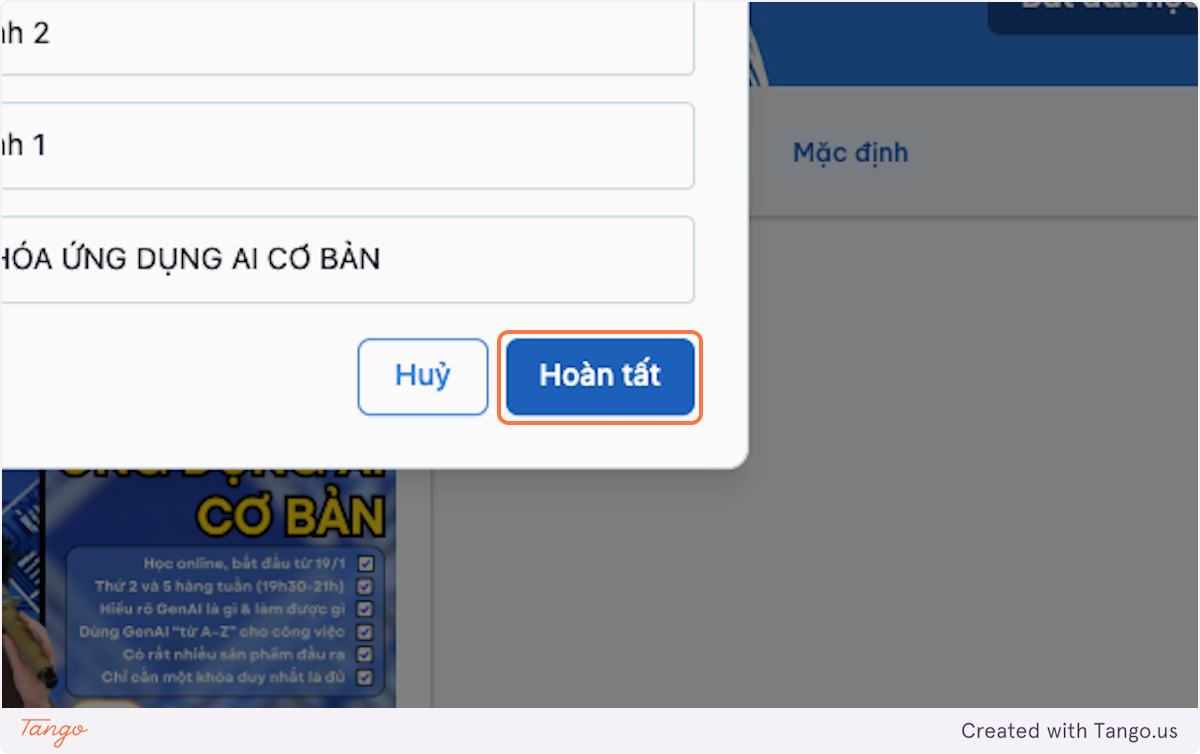
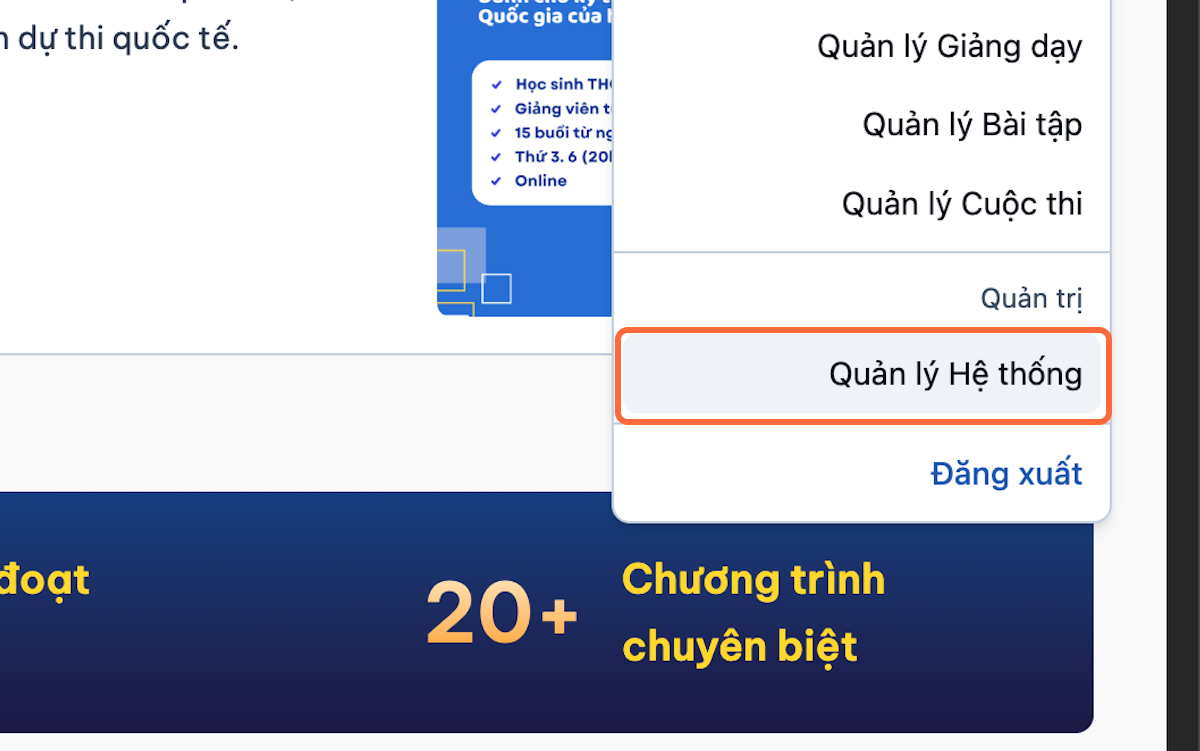
Access System Management.
-
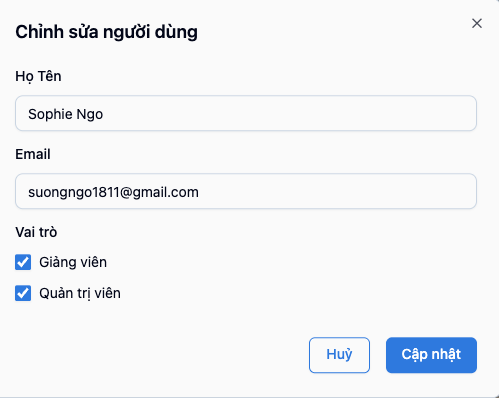
Select Voucher Management.
-
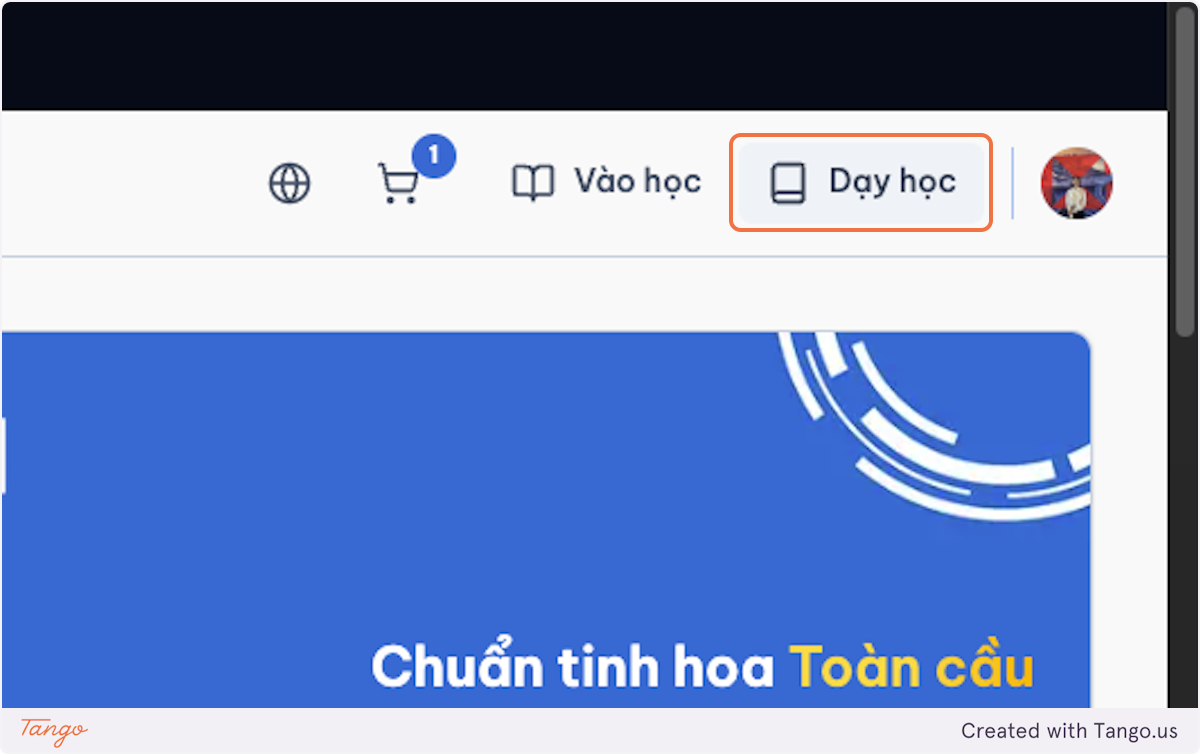
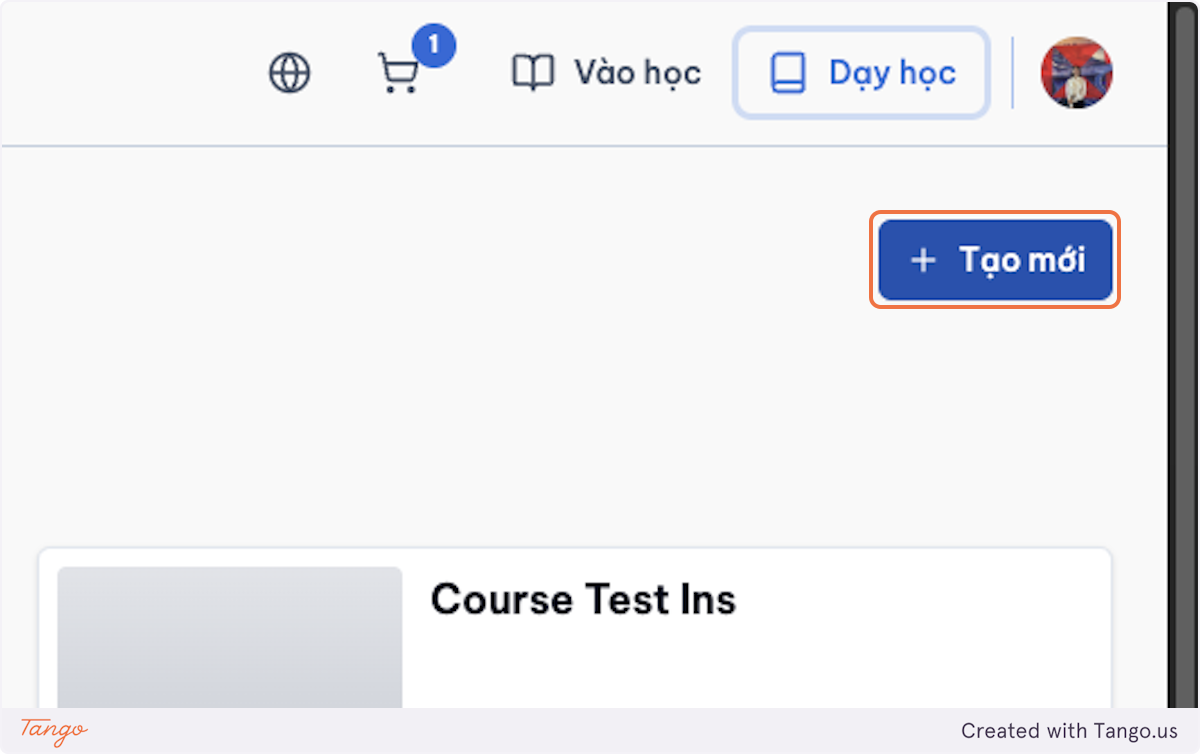
Click Create New Voucher.
-
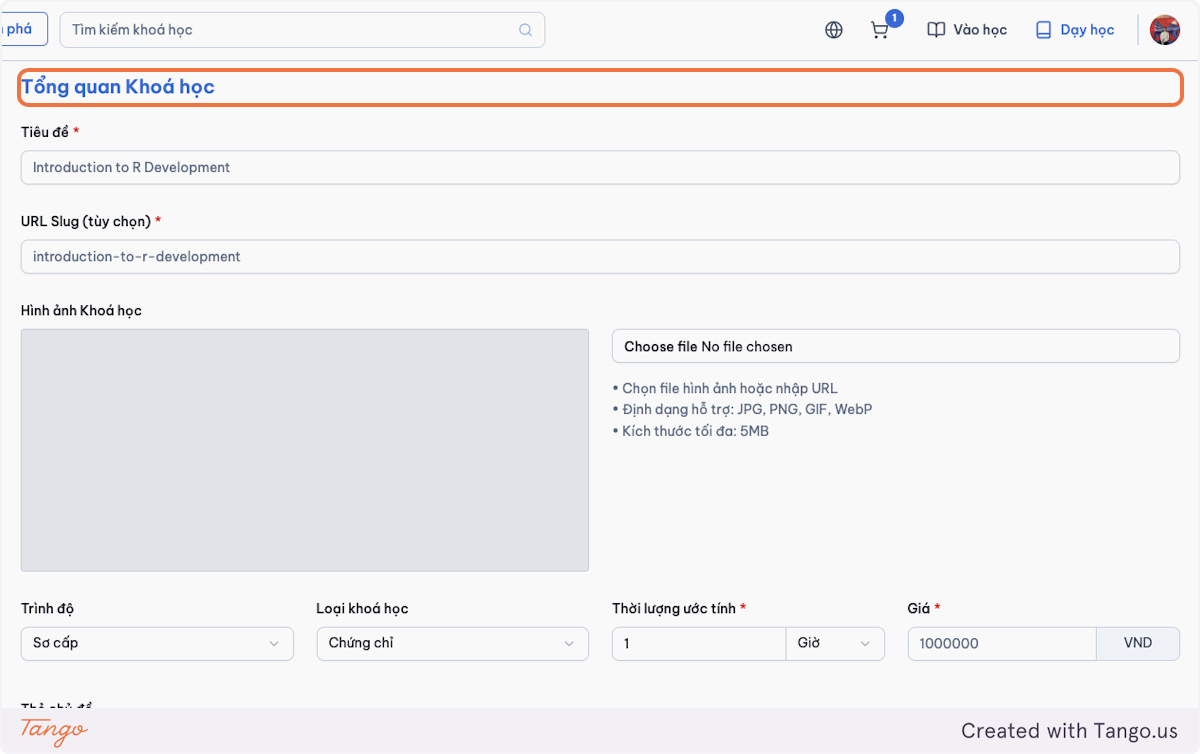
Enter the voucher information:
- Voucher code
- Voucher name or description
- Discount type: percentage or fixed amount
- Discount value
- Start date
- Expiry date
- Total usage limit
- Usage limit per user, if applicable
-
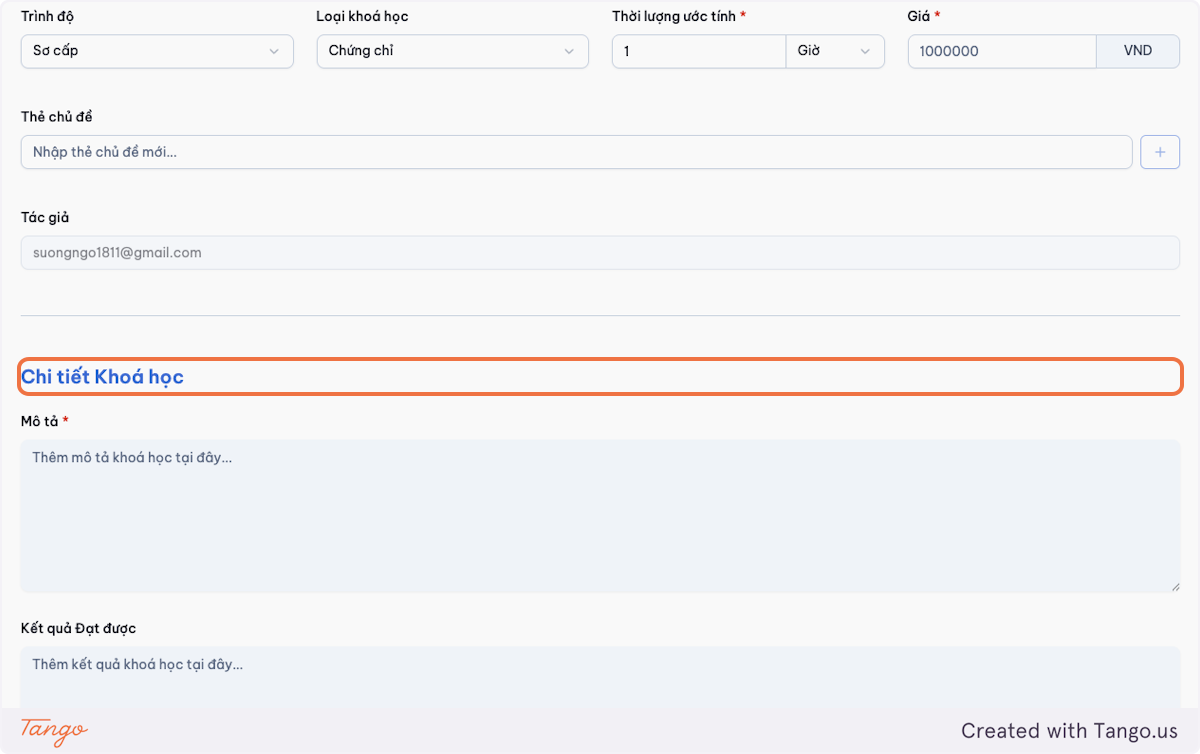
Switch the voucher status to Active.
-
Confirm that the voucher appears in the voucher list.
Important Notes
- A percentage discount should not exceed the maximum percentage permitted by the LMS.
- An expired, inactive, or fully used voucher cannot be applied at checkout.
- Voucher codes should be unique.
1.3.2) Edit or Deactivate a Voucher
-
Open Voucher Management.
-
Search for the voucher code.
-
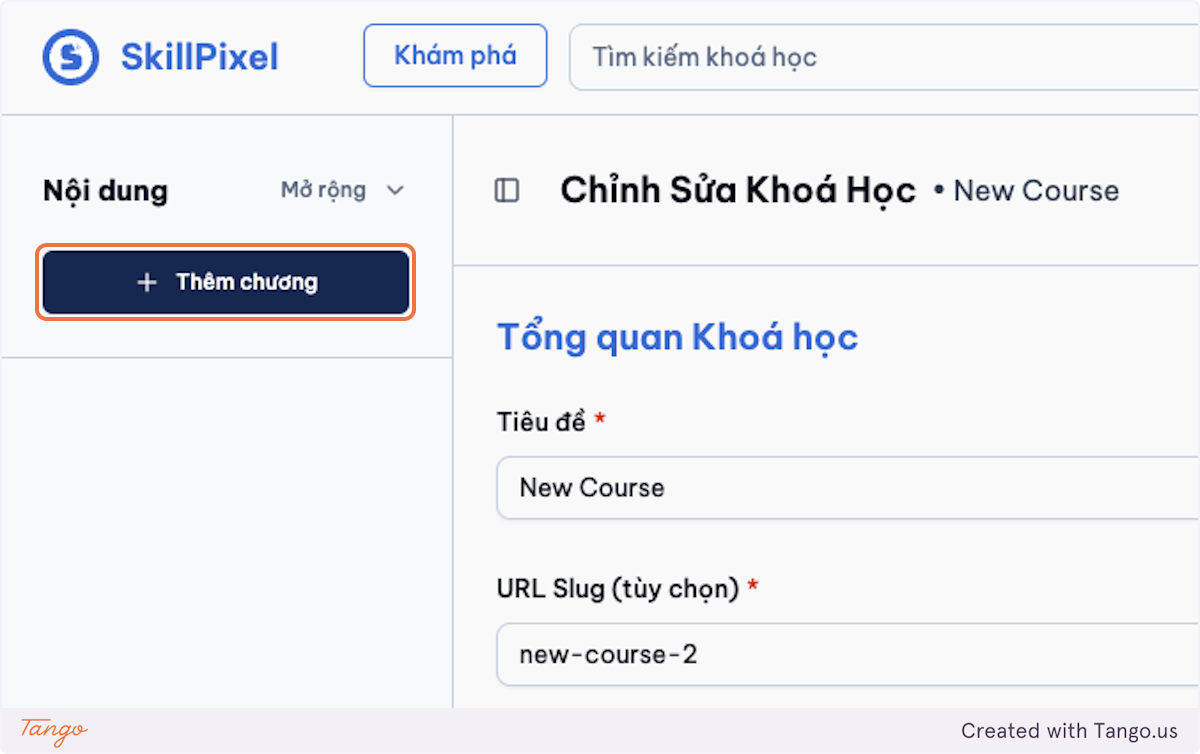
Click the voucher to Edit.
-
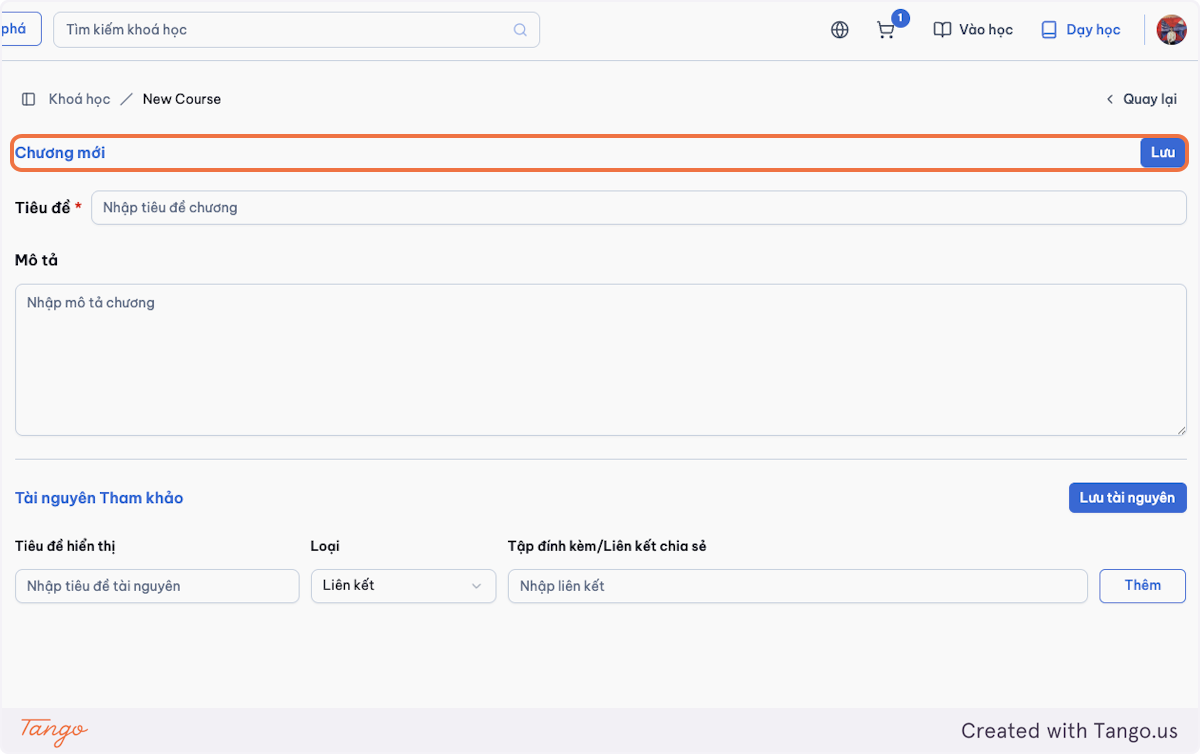
Update the permitted fields.
-
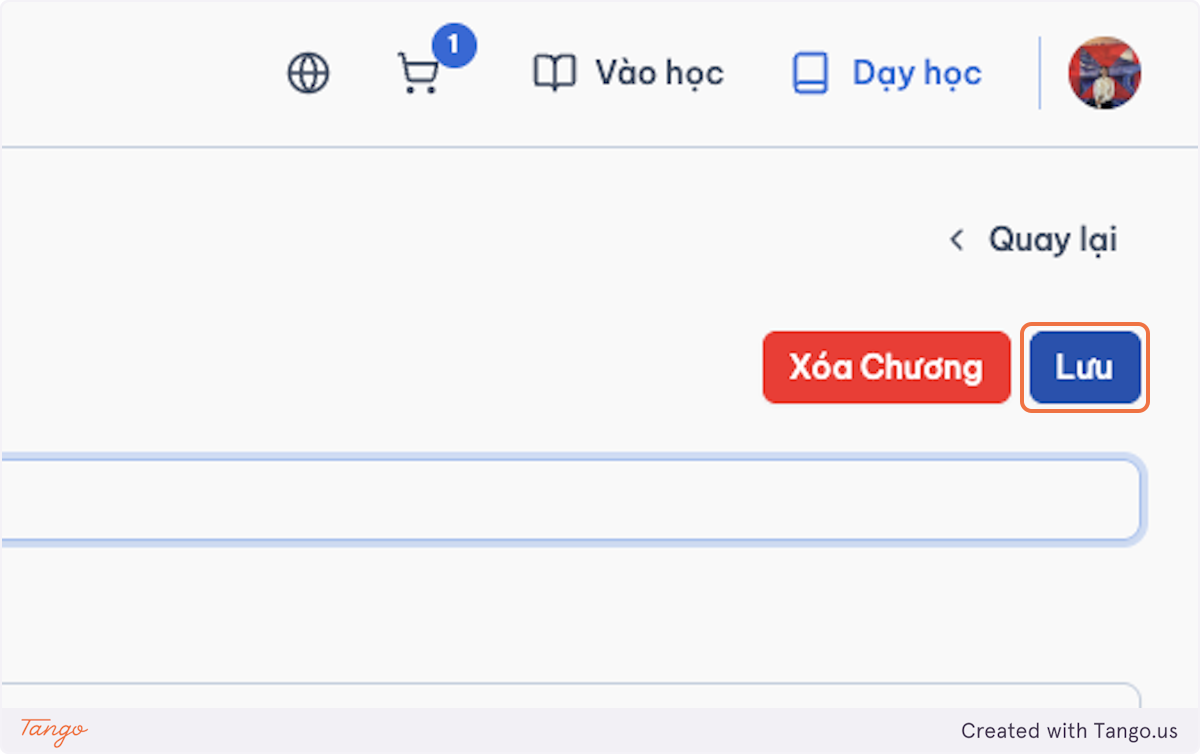
Click Update to save the changes.
-
To stop future use, switch the voucher status to Inactive.
-
Confirm that the updated status appears in the voucher list.