Admin: Customer Support Management
1.5 Customer Support Management
1.5.1) Review a Support Conversation
-
Access System Management.
-
Select Customer Support or Conversation Inbox.
-
Filter conversations by:
- All
- Waiting to Support
- Active
- Resolved
-
Open the conversation.
-
Review:
- Student information
- Previous messages
- Course information
- Screenshots or attachments
- Transaction details, if relevant
1.5.2) Respond to a User
-
Open the support conversation and select Accept to start responding.
-
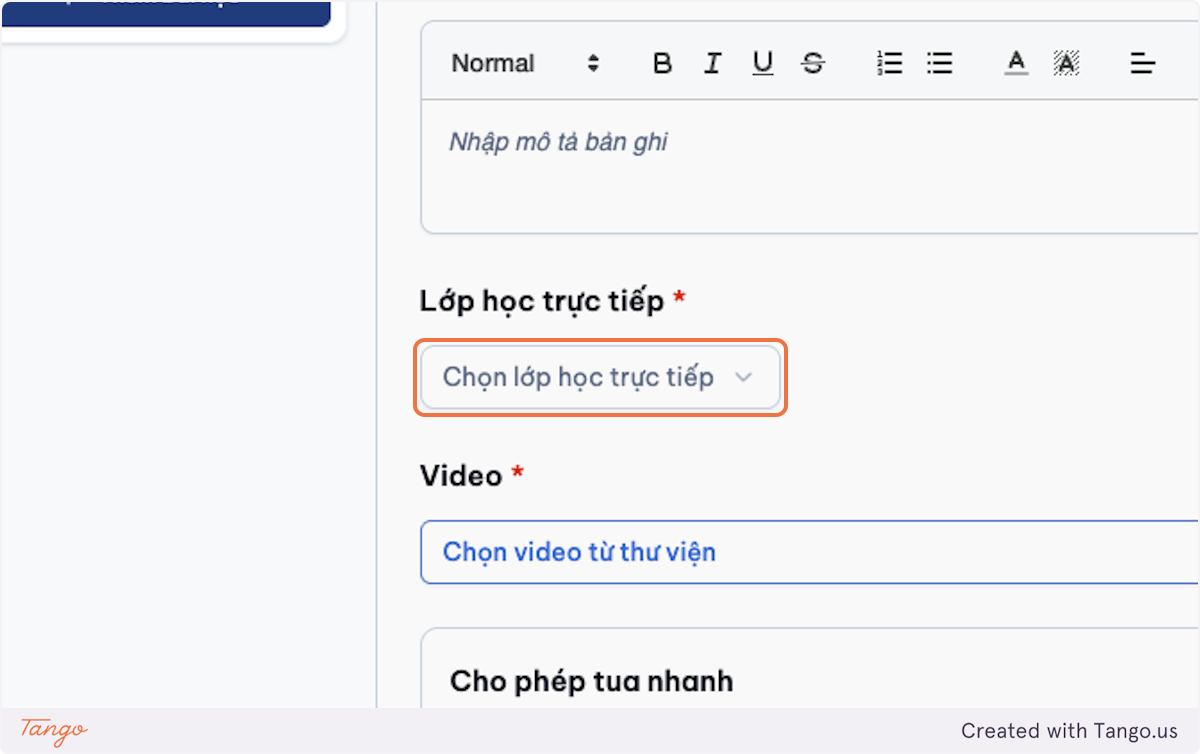
Enter the response.
-
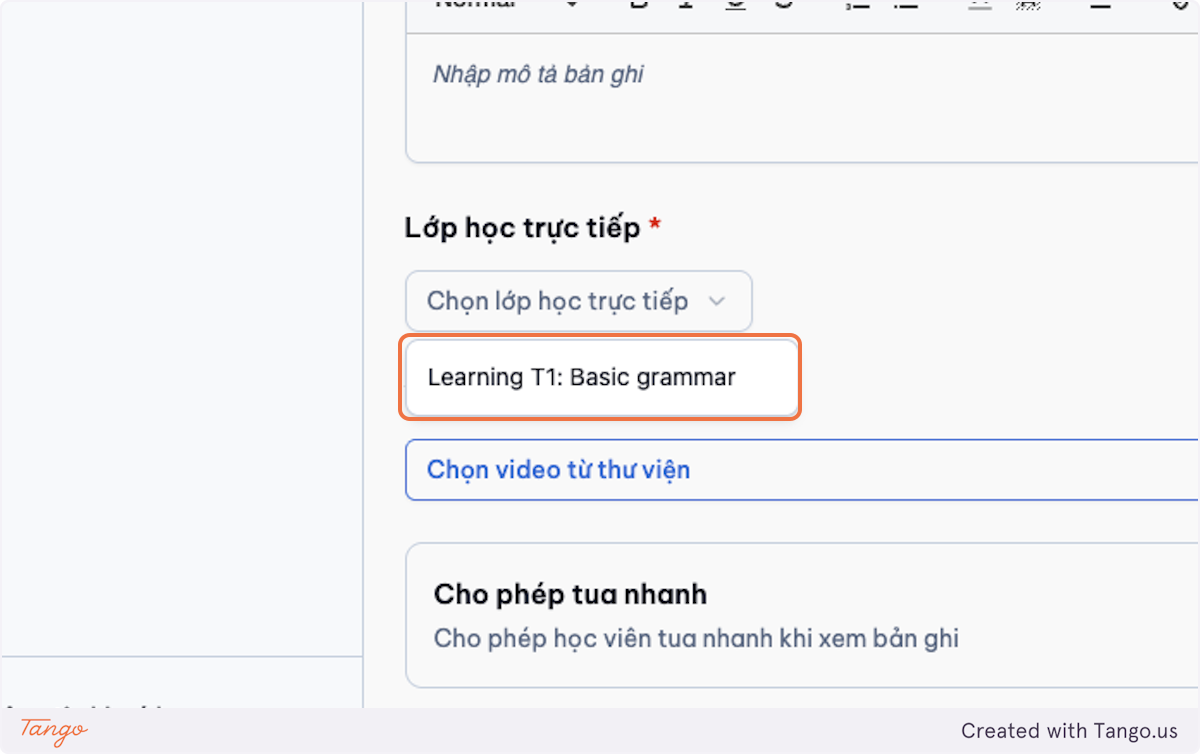
Click Send.
-
Confirm that the response appears in the conversation history.
1.5.3) Resolve a Conversation
-
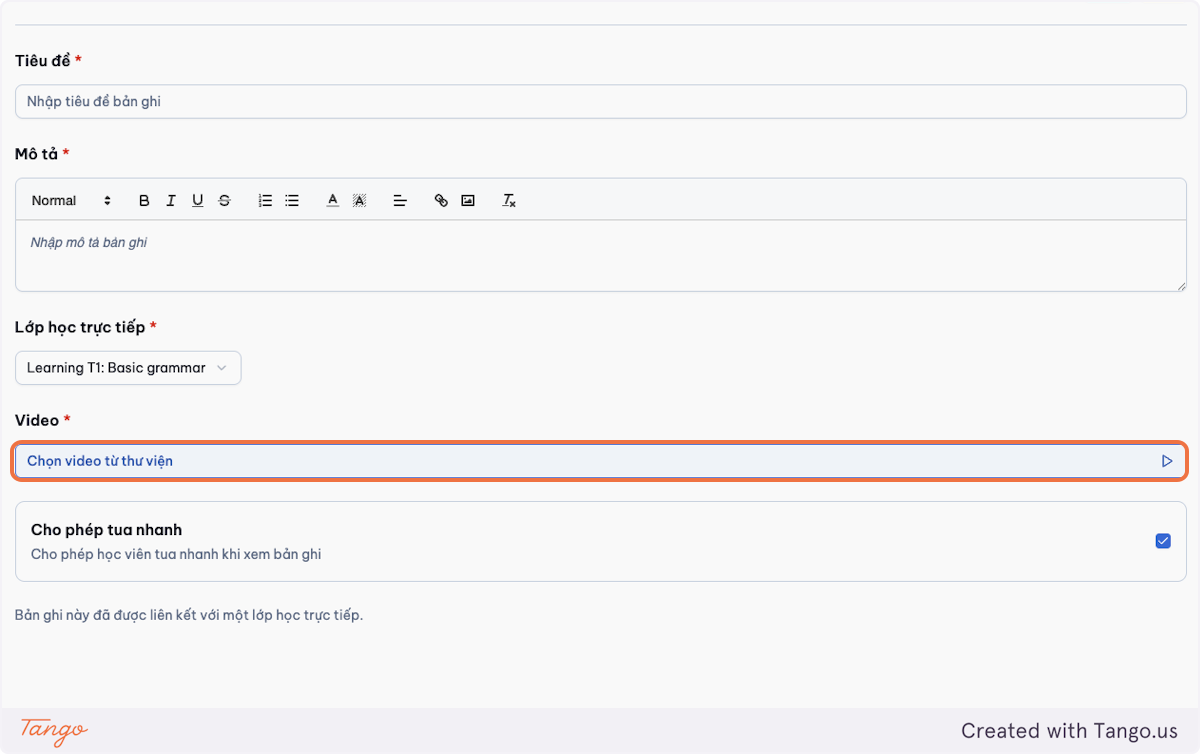
Open the conversation.
-
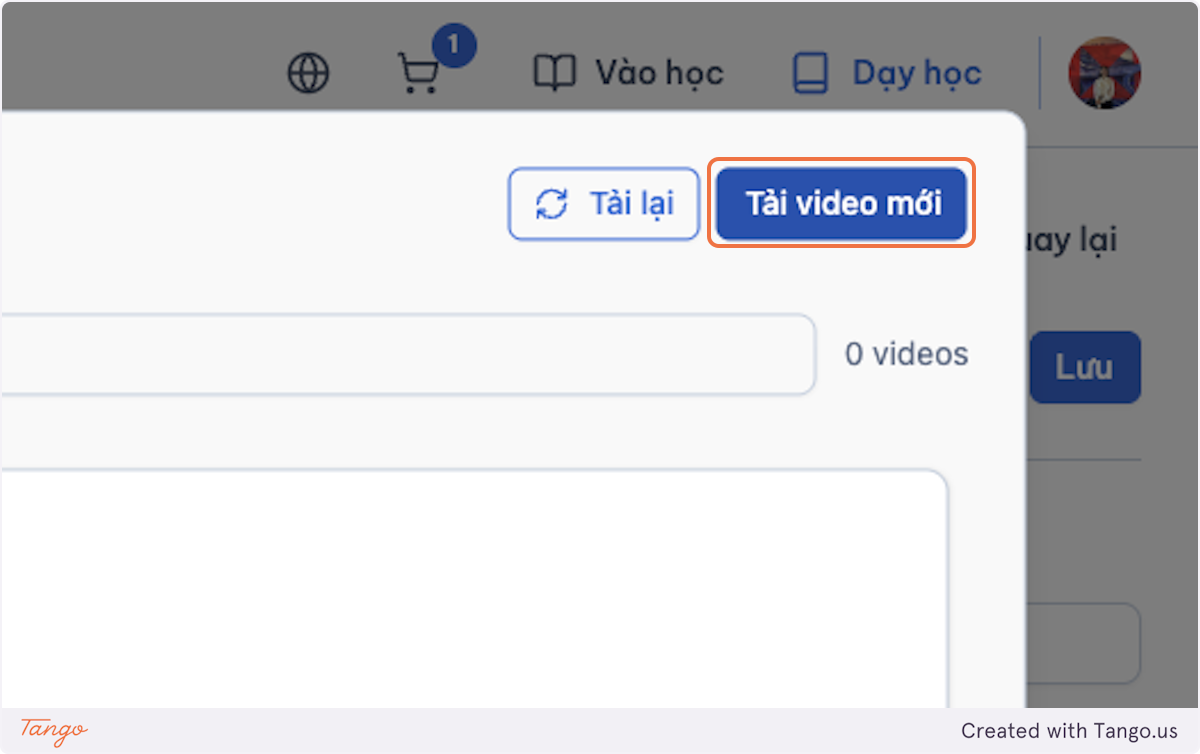
Change the status to Resolved by selecting Mark as complete.
-
Reopen the conversation if the user reports that the issue continues.