Grading Centre
2.8 Grading Centre
2.8.1) Review a Submission
-
Go to Teaching.
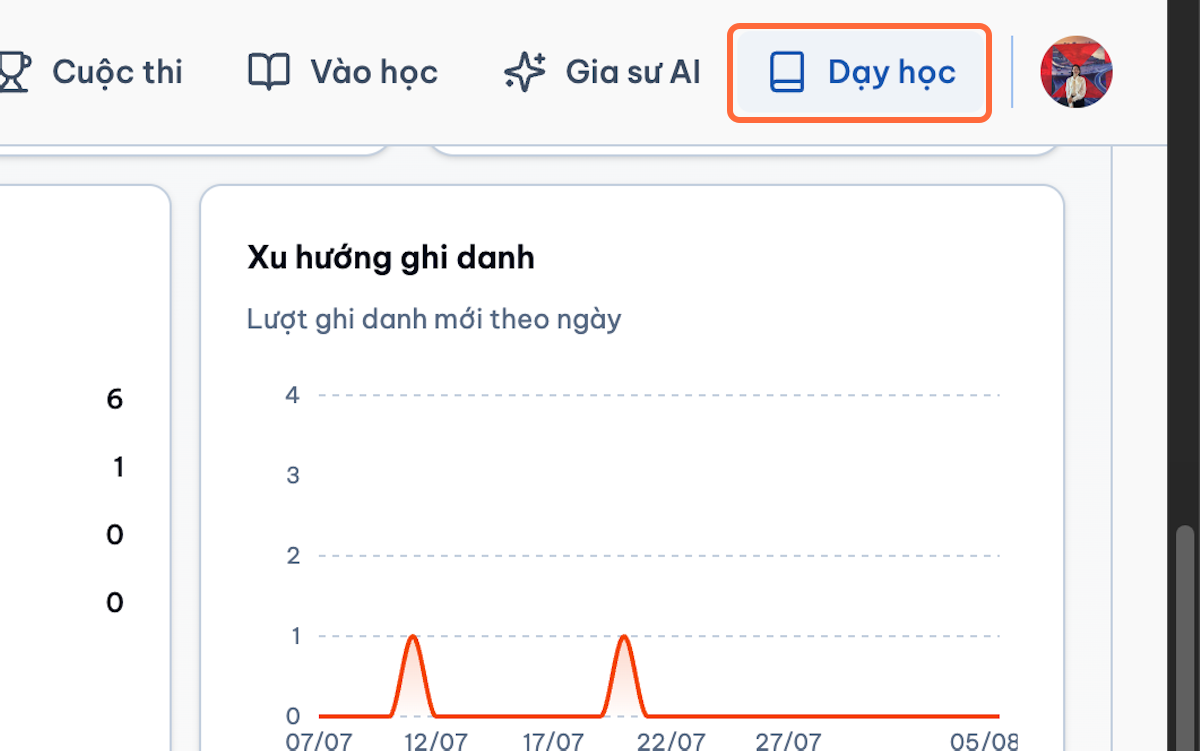
-
Open the course.
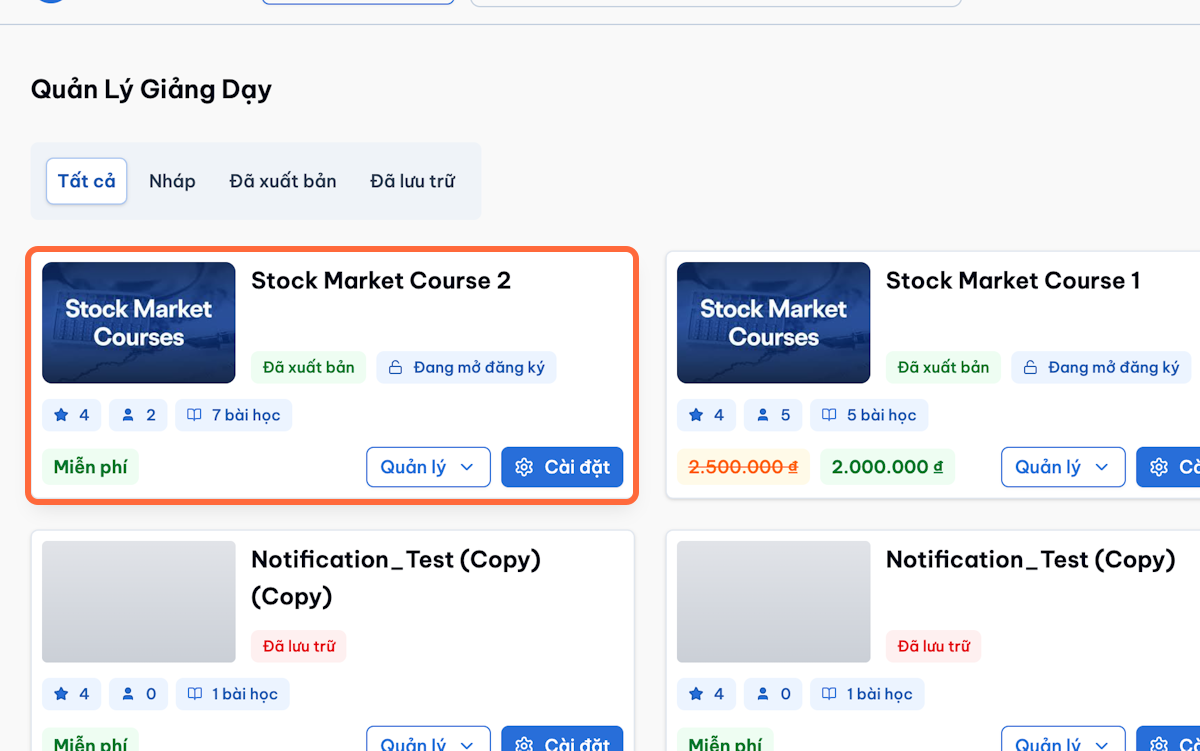
-
Select Grading Centre, Submissions, or Assessments.
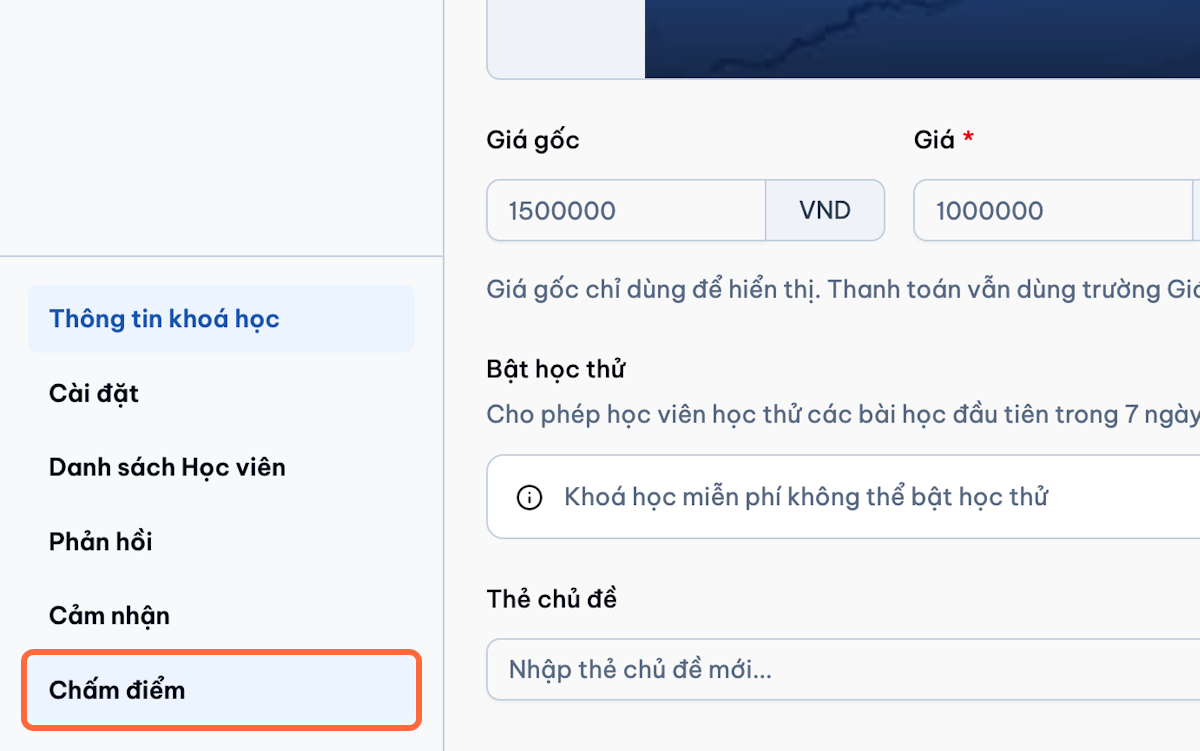
-
Filter by:
- Assessment
- Student
- Submission status
- Submitted date
- Grading status
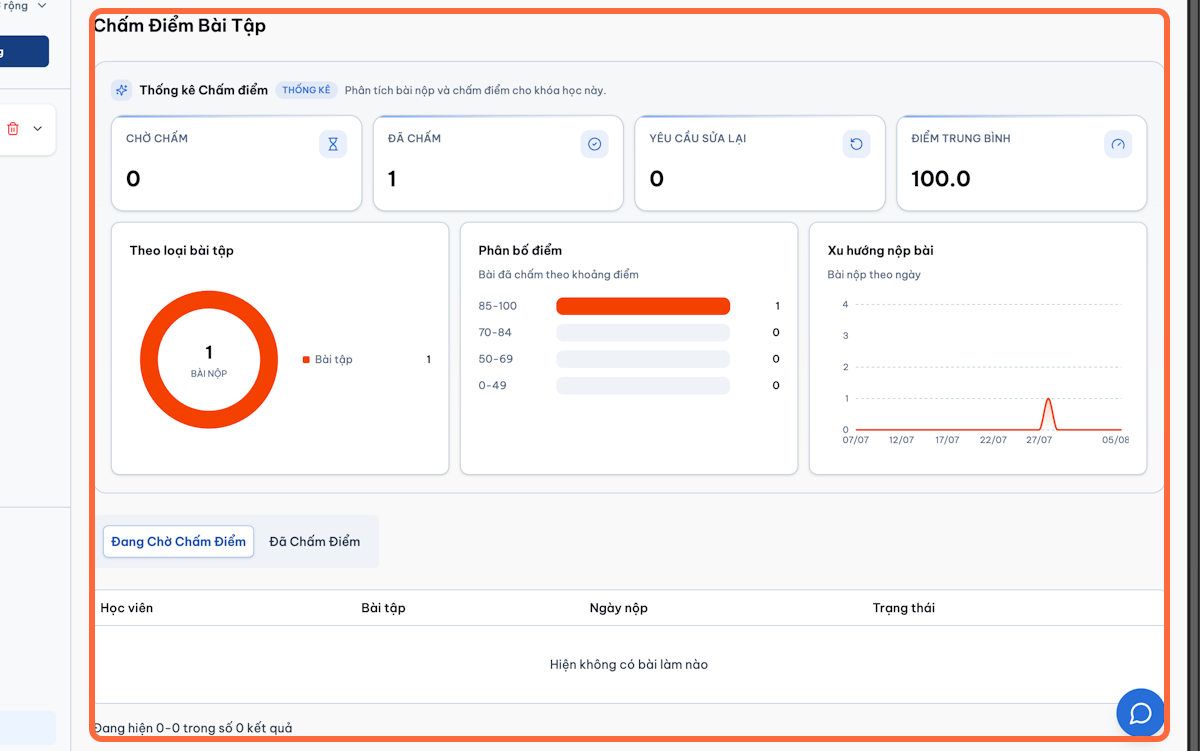
-
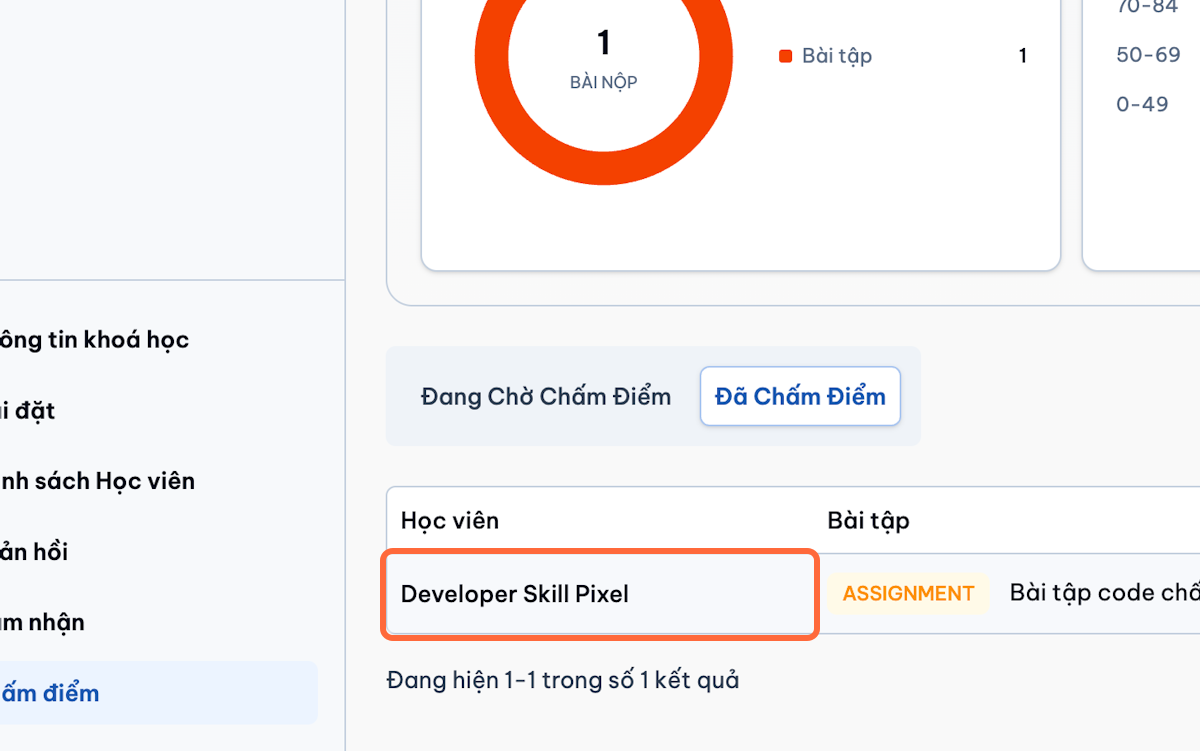
Open the submission.
-
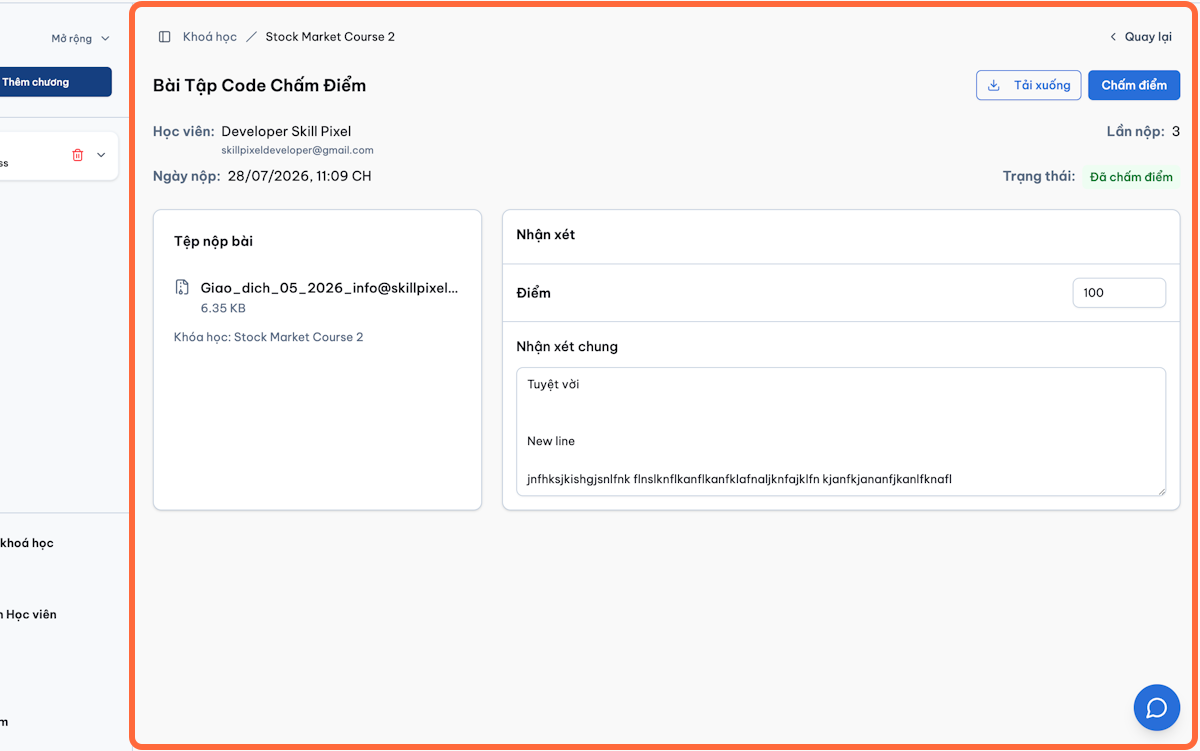
Review the student’s response and attachments.
-
Review AI-assisted feedback, when enabled.
2.8.2) Grade and Approve Work
-
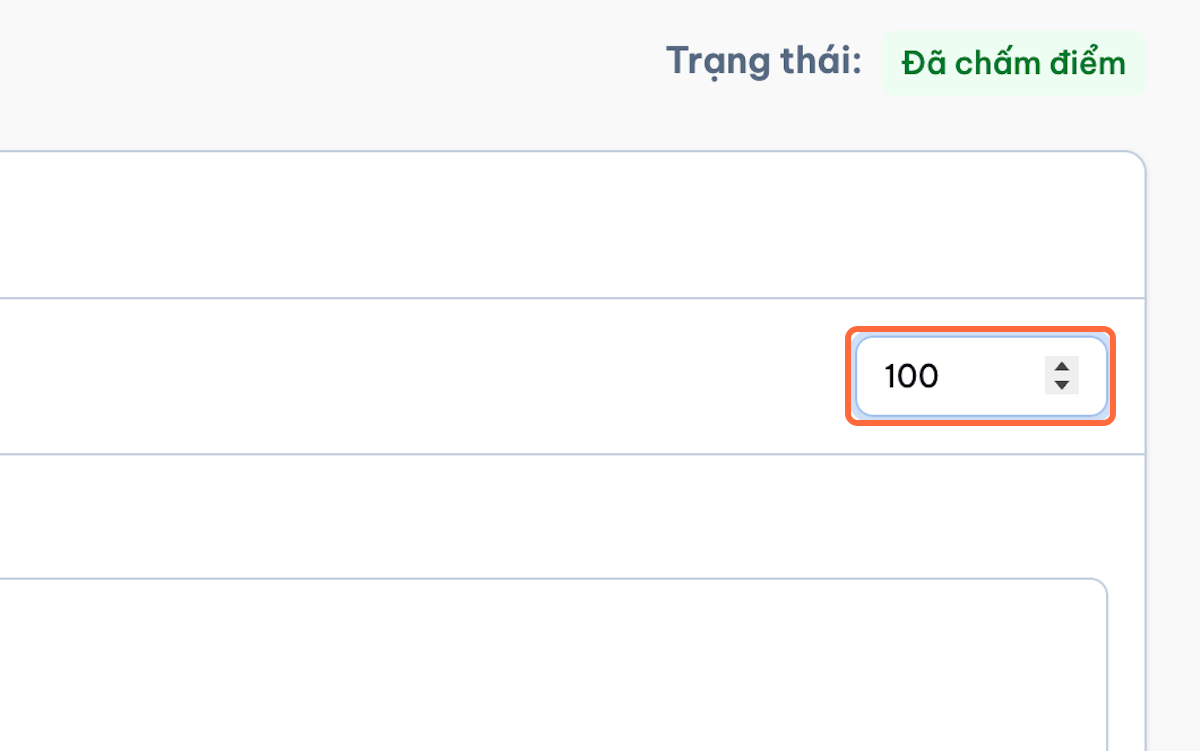
Enter the score.
-
Add instructor feedback.
-
Confirm whether the submission meets the passing conditions.
-
Select Approve or Pass.
-
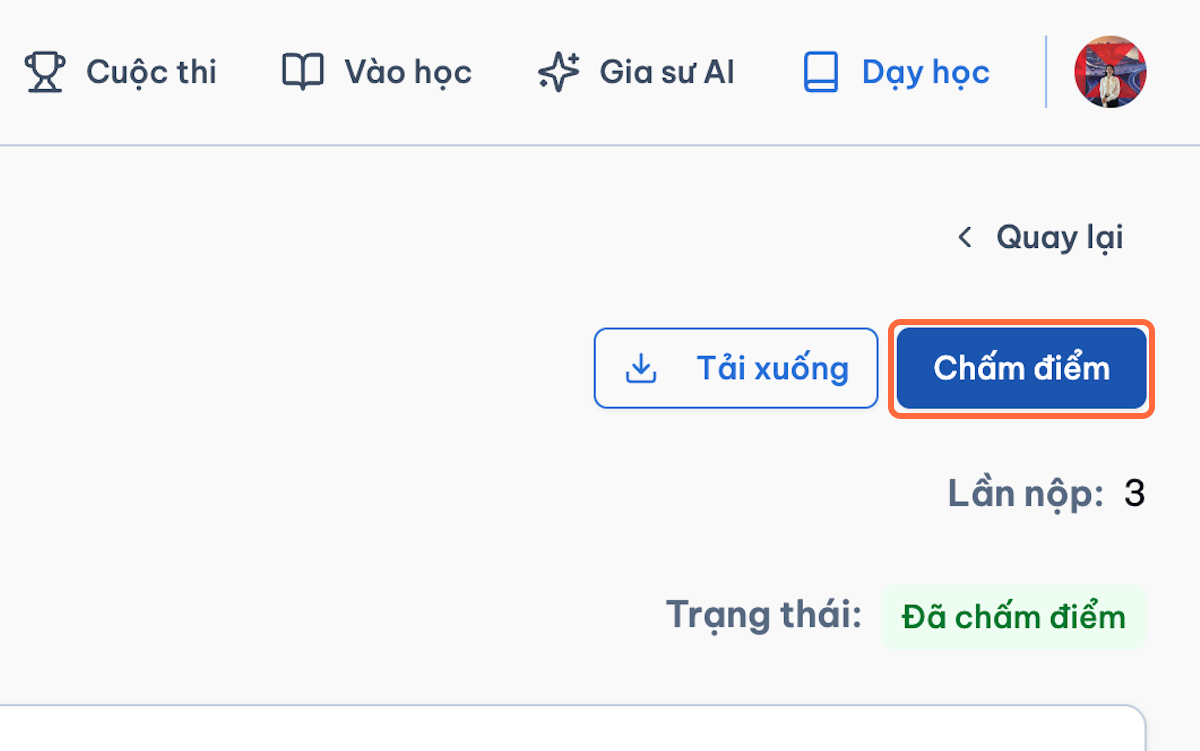
Click Save or Publish Grade.
-
Confirm that the grade is visible in the student record.
2.9 Additional Quiz Administration
2.9.1) Import Questions from DOCX
-
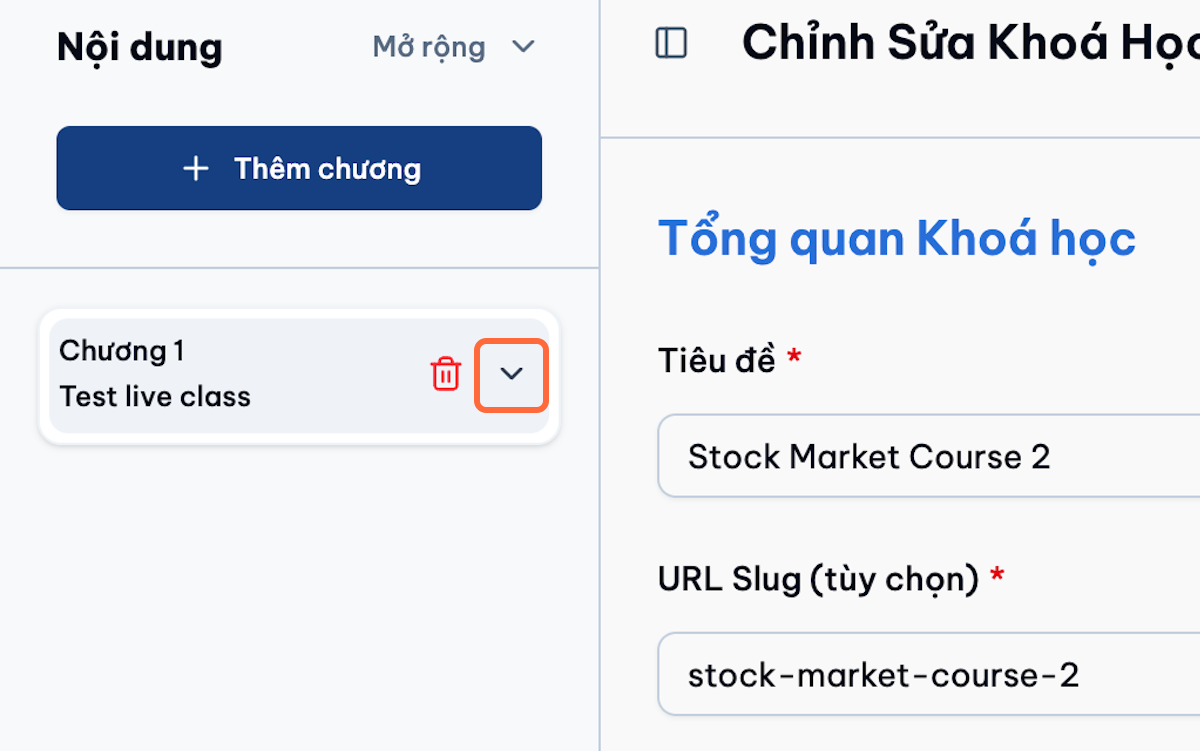
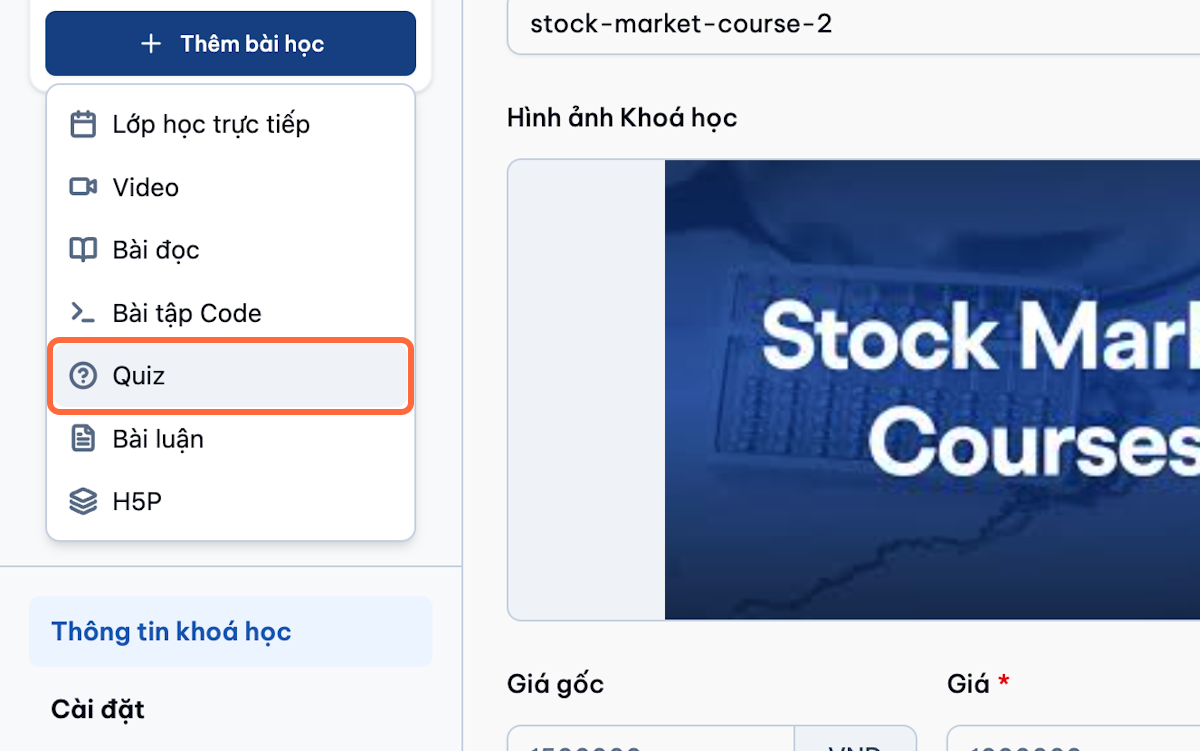
Open the quiz.
-
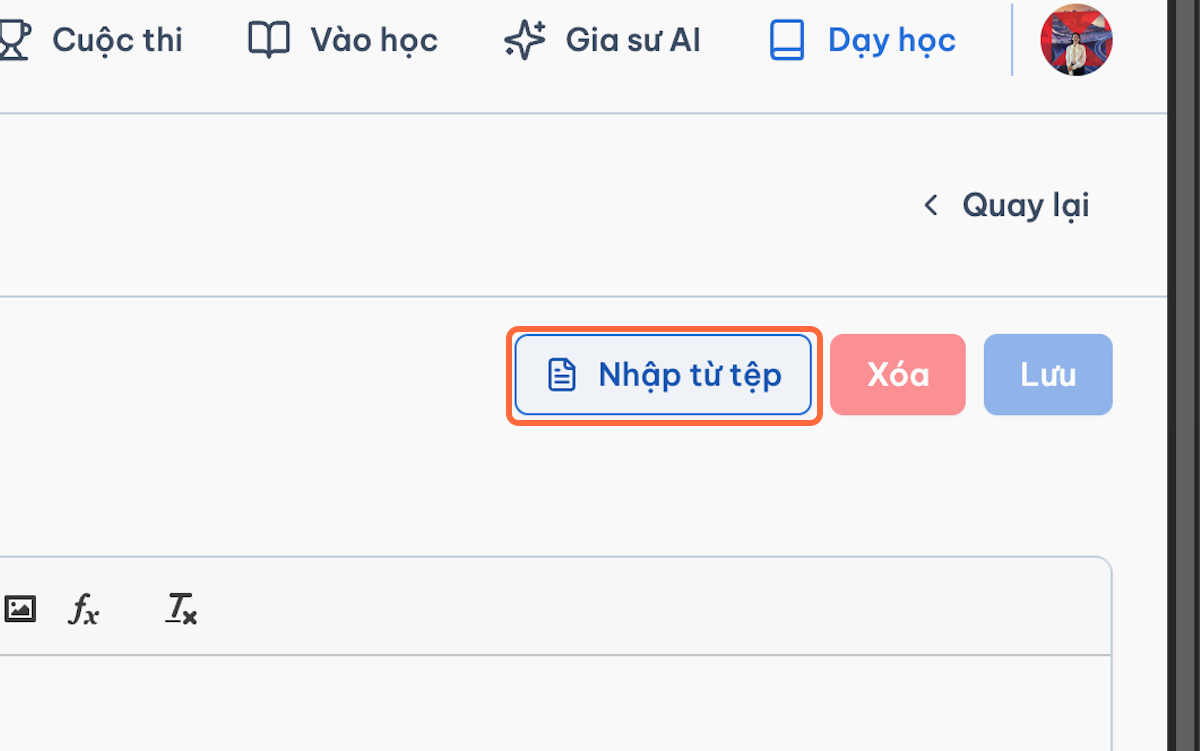
Select Import Questions.
-
Download the required template, if available.
-
Add questions using the required format.
-
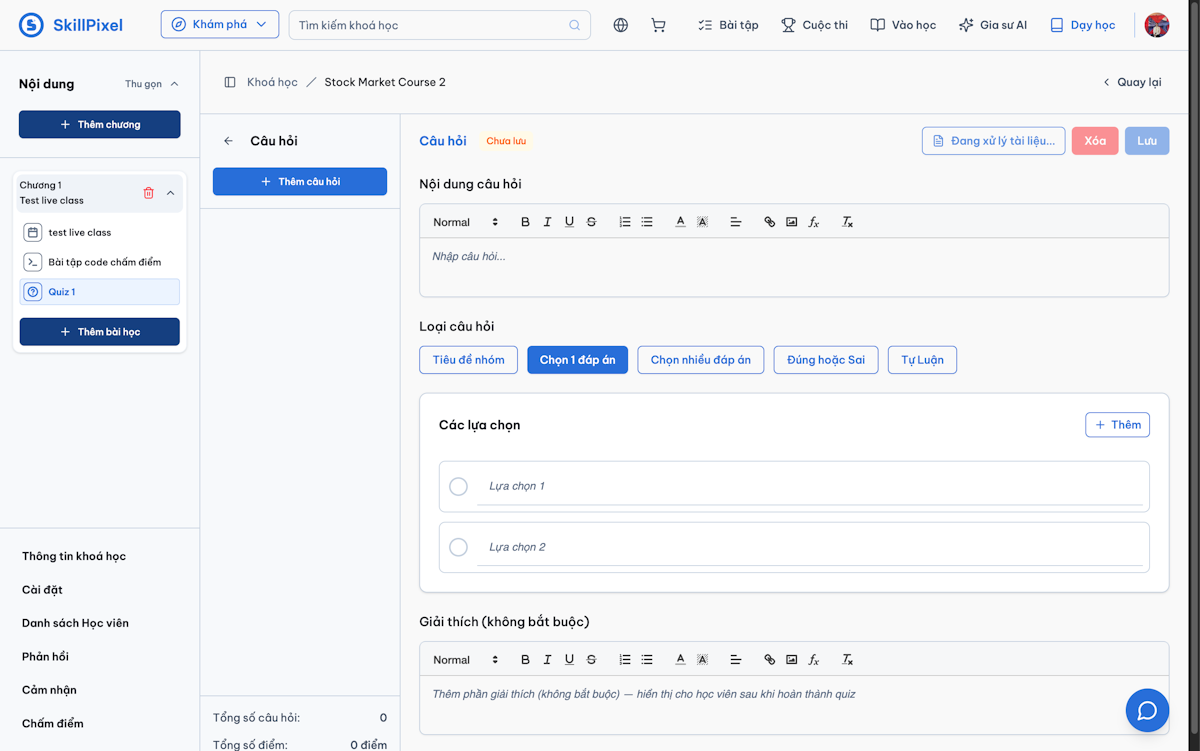
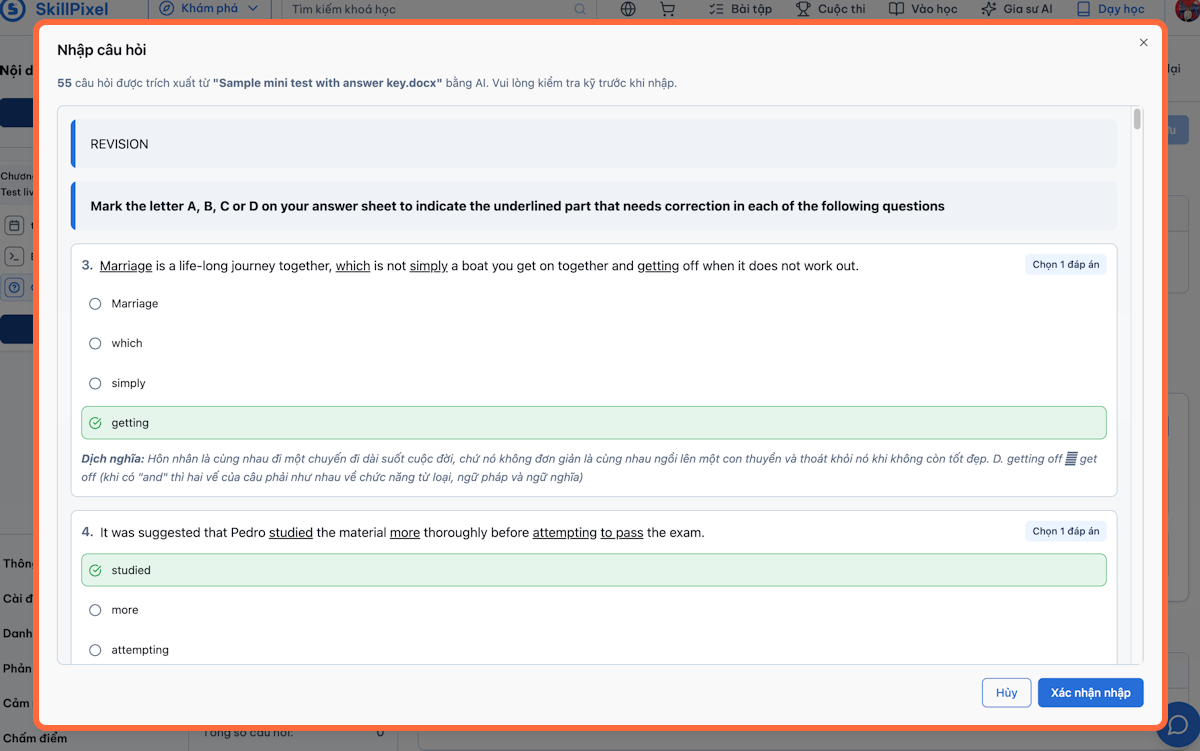
Upload the DOCX file.
-
Review validation errors.
-
Correct invalid questions.
-
Confirm the import.
-
Review the imported questions before publishing the quiz.