Student: Learning on the LMS
3.3 My Learning Dashboard
For courses you are enrolled in:
-
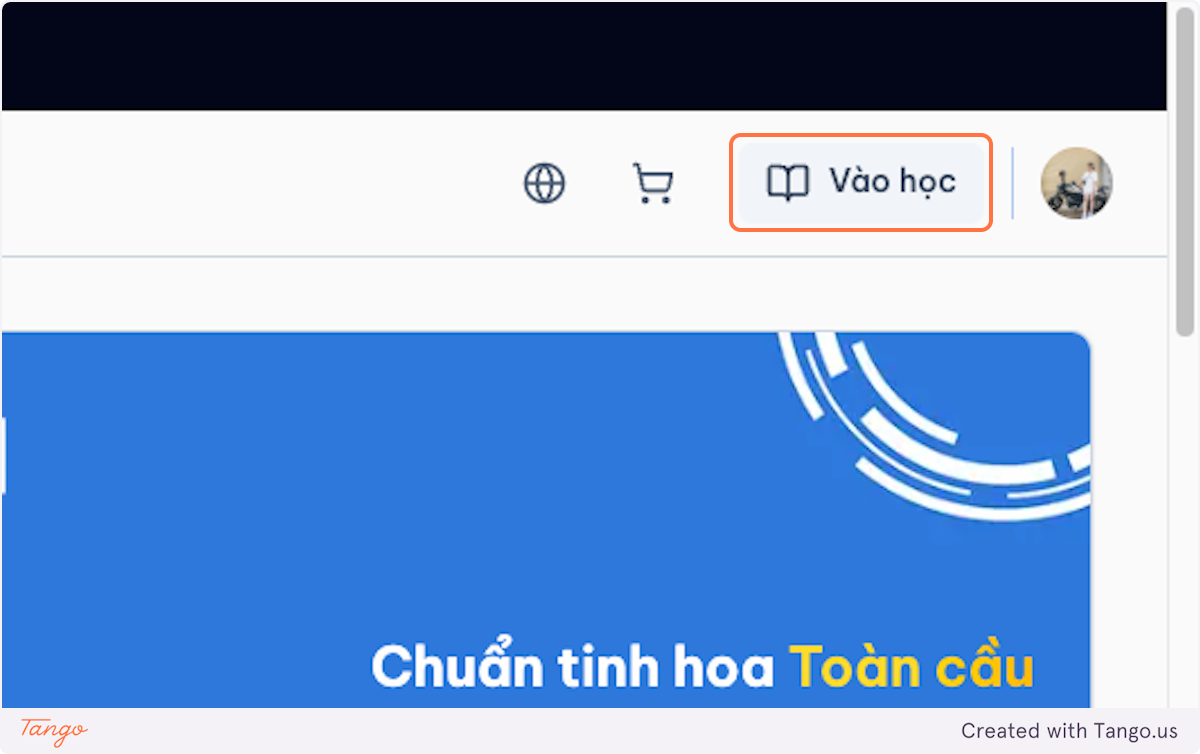
Click on Learning.
-
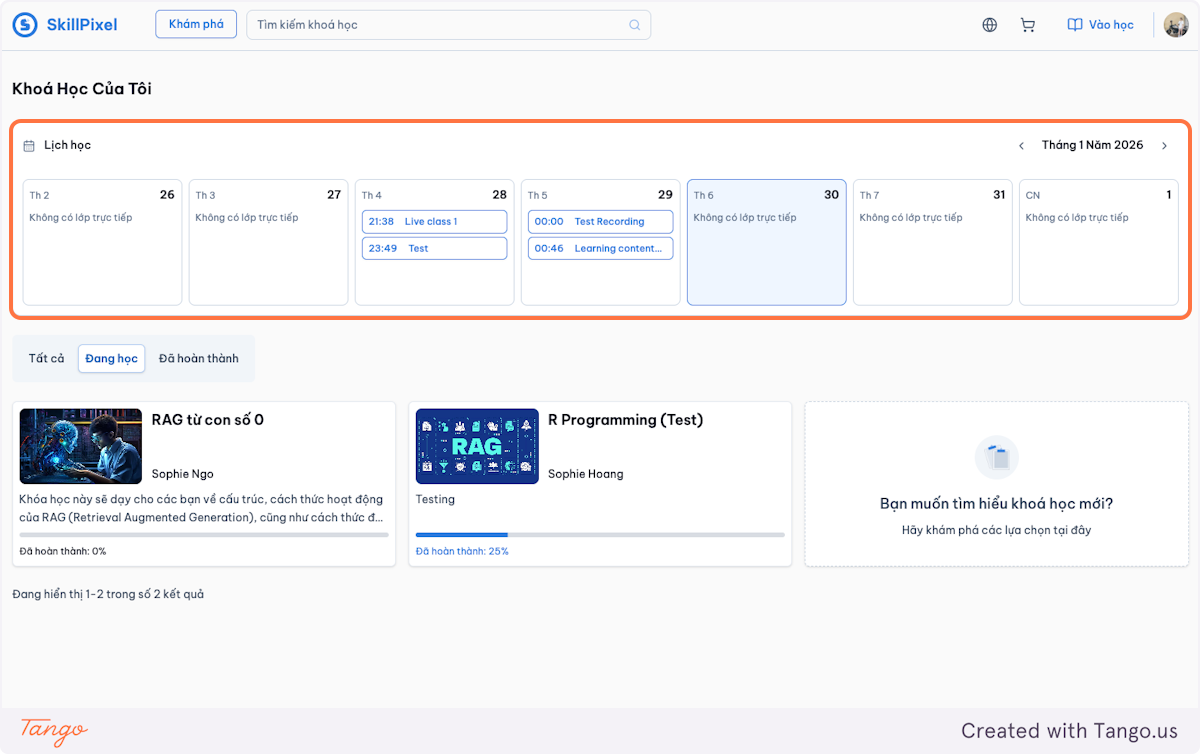
Click on Lịch học (Schedule). The schedule of your enrolled courses appears here, with the details of each course below it.
-
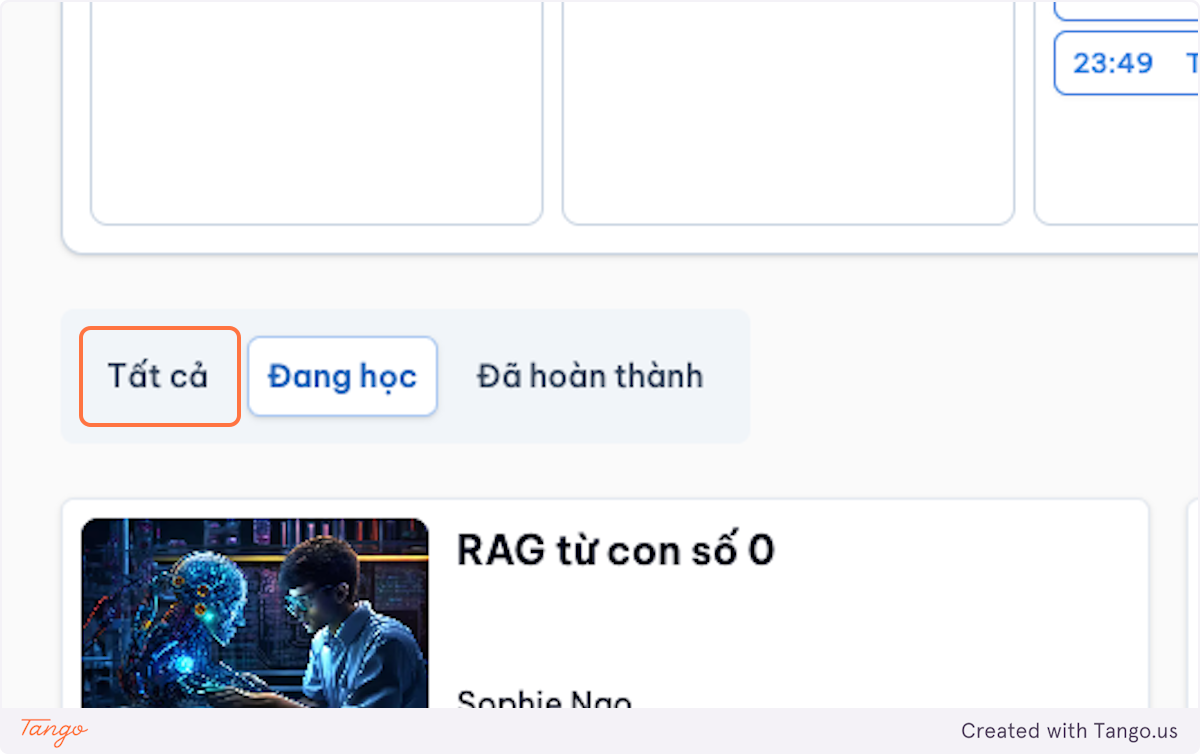
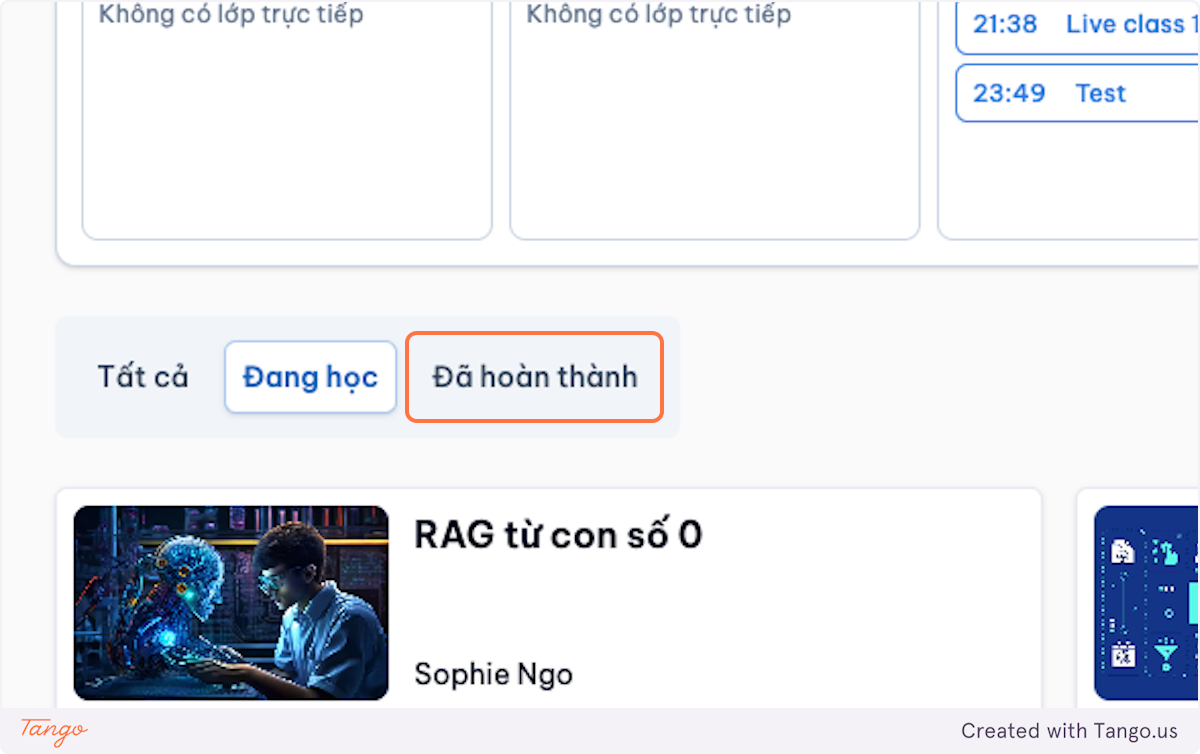
Click on Tất cả (All) to view all enrolled courses.
-
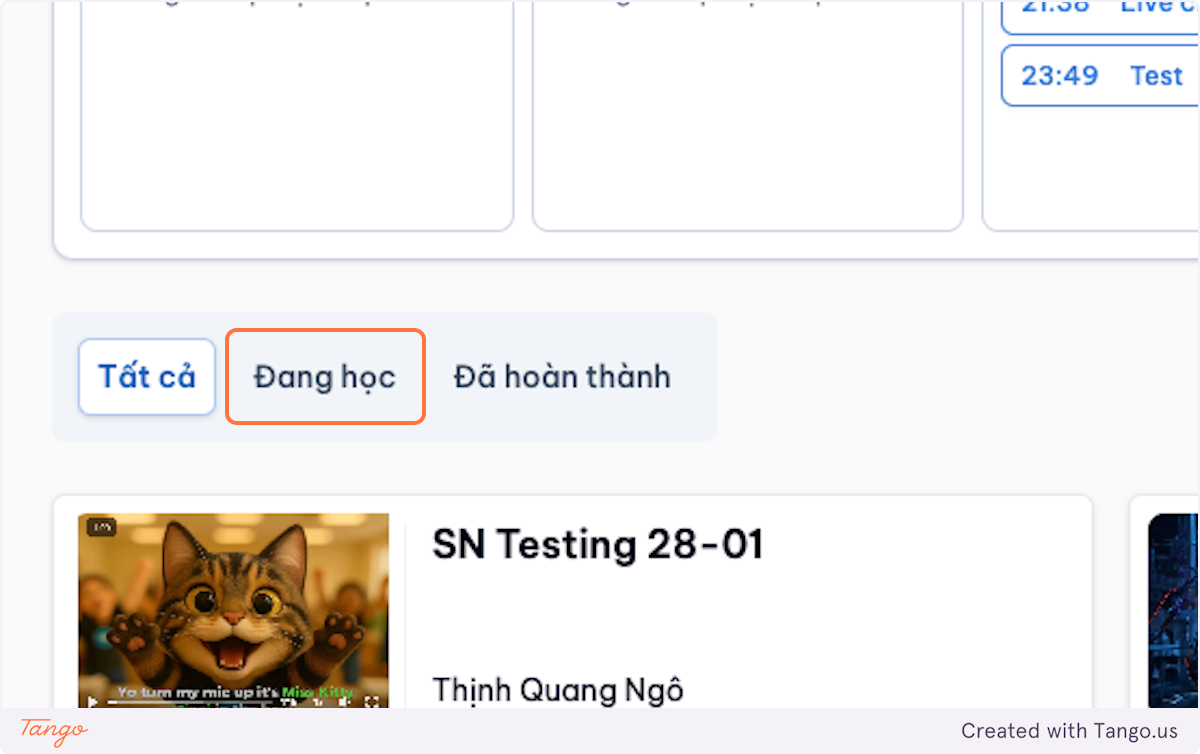
Click on Đang học (In progress) to view the courses you are currently studying.
-
Click on Đã hoàn thành (Completed) to view the courses you have completed.
3.4 Navigate Inside a Course
-
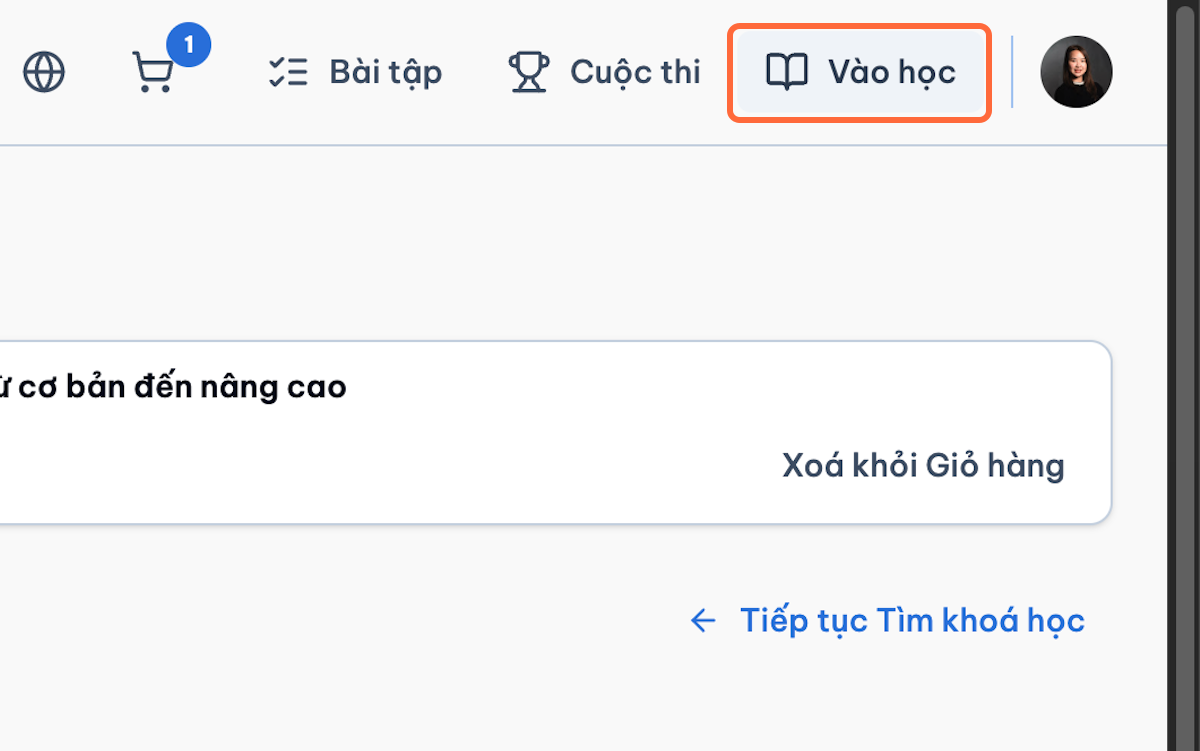
Open My Learning.
-
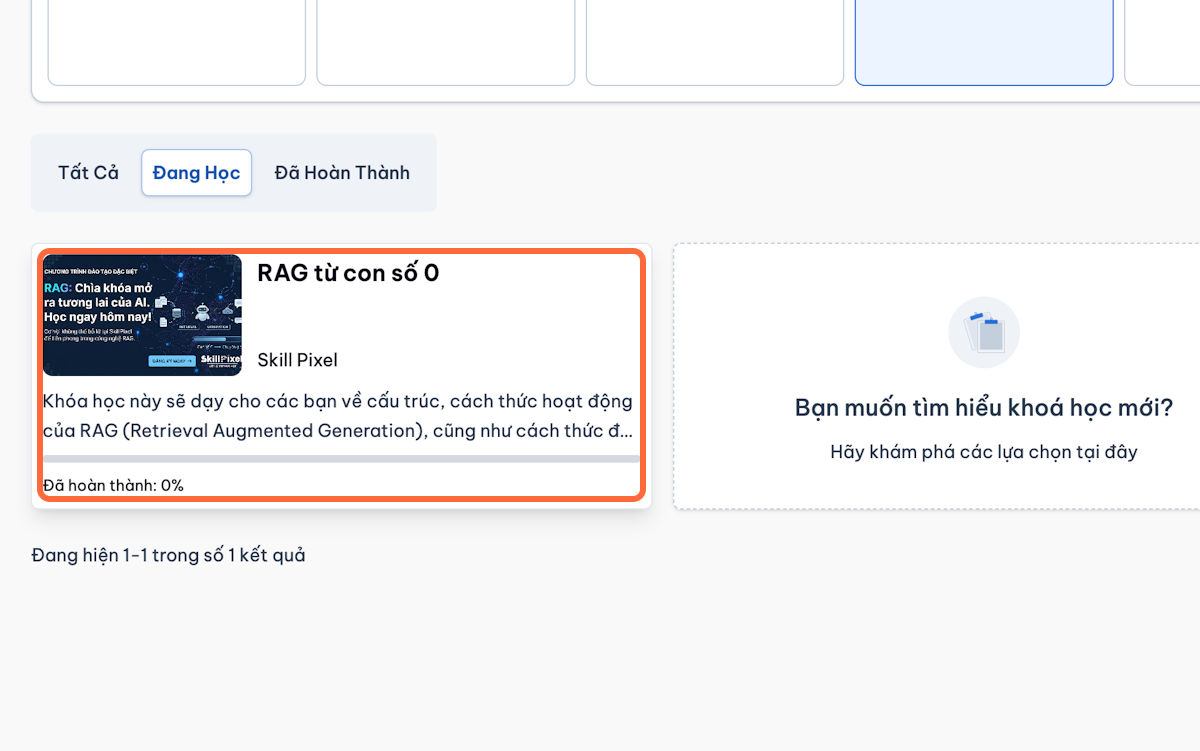
Select the course.
-
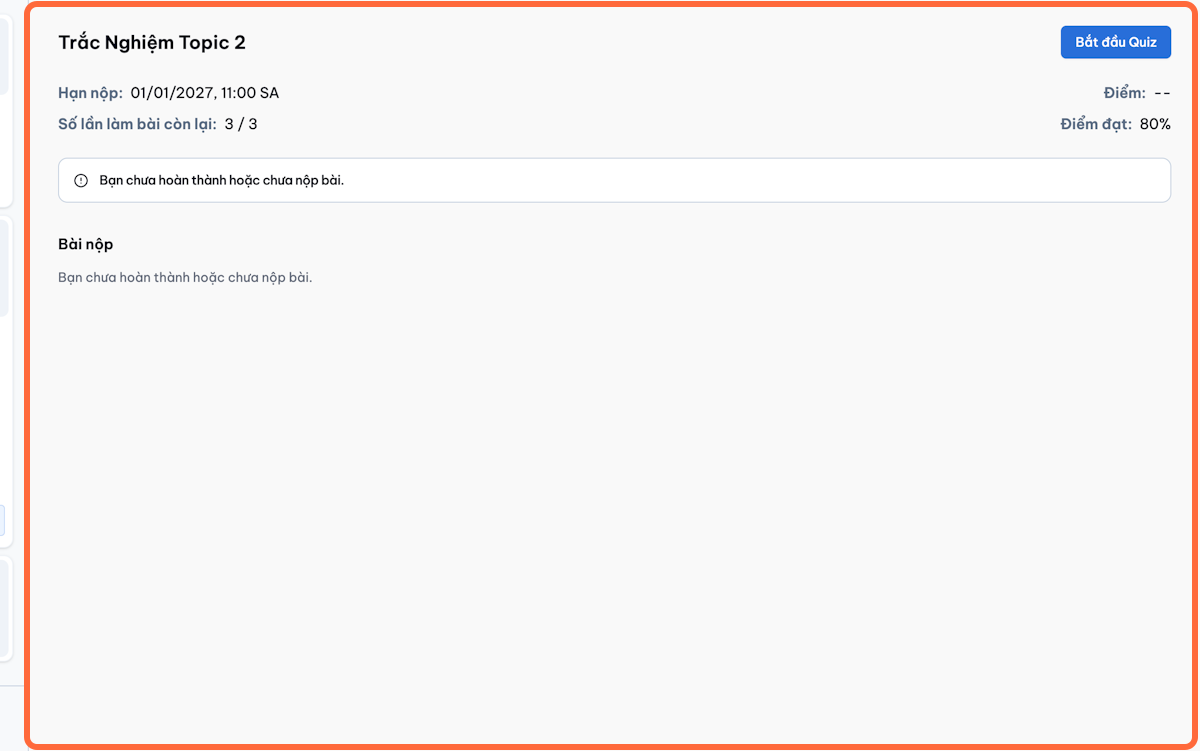
Use the course navigation menu to access:
- Course Content
- Grades
- Notes
- Discussion Board
- Resources
- Reviews
- Progress
-
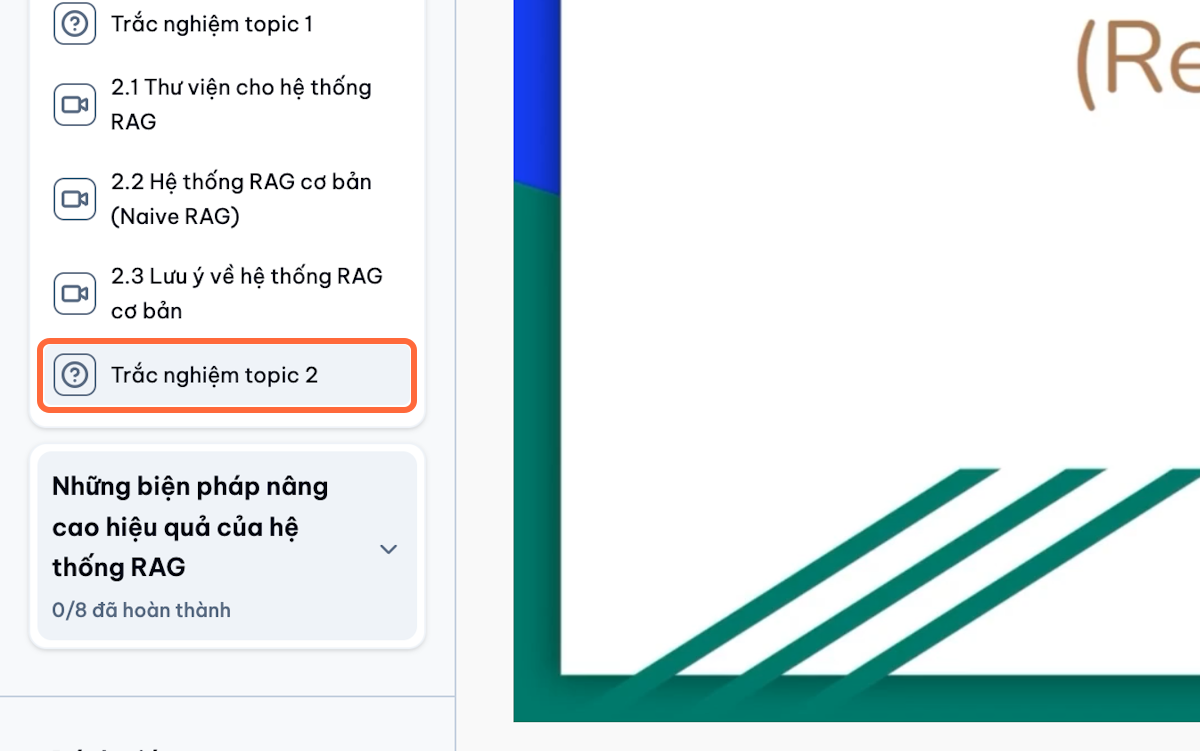
Select a module.
-
Open the required lesson.
-
Check completed-item indicators to confirm which lessons are finished.
3.5 Complete Additional Learning Activities
3.5.1) Submit an Essay or Assignment
-
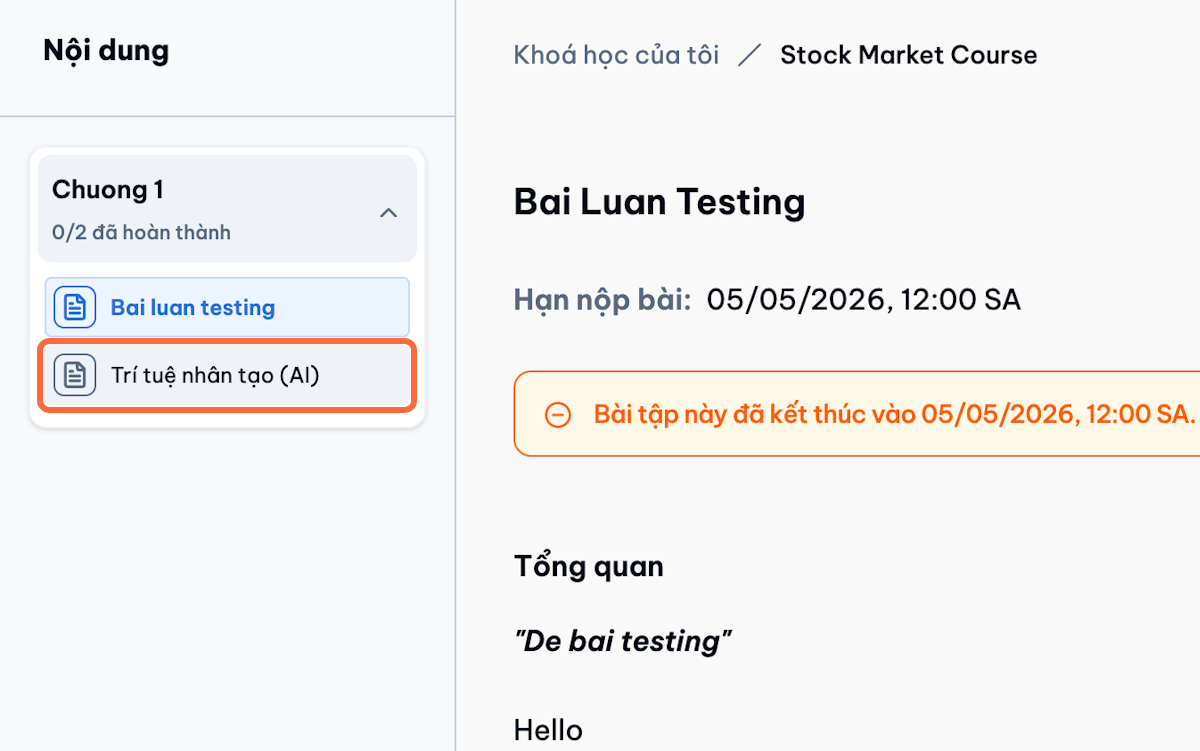
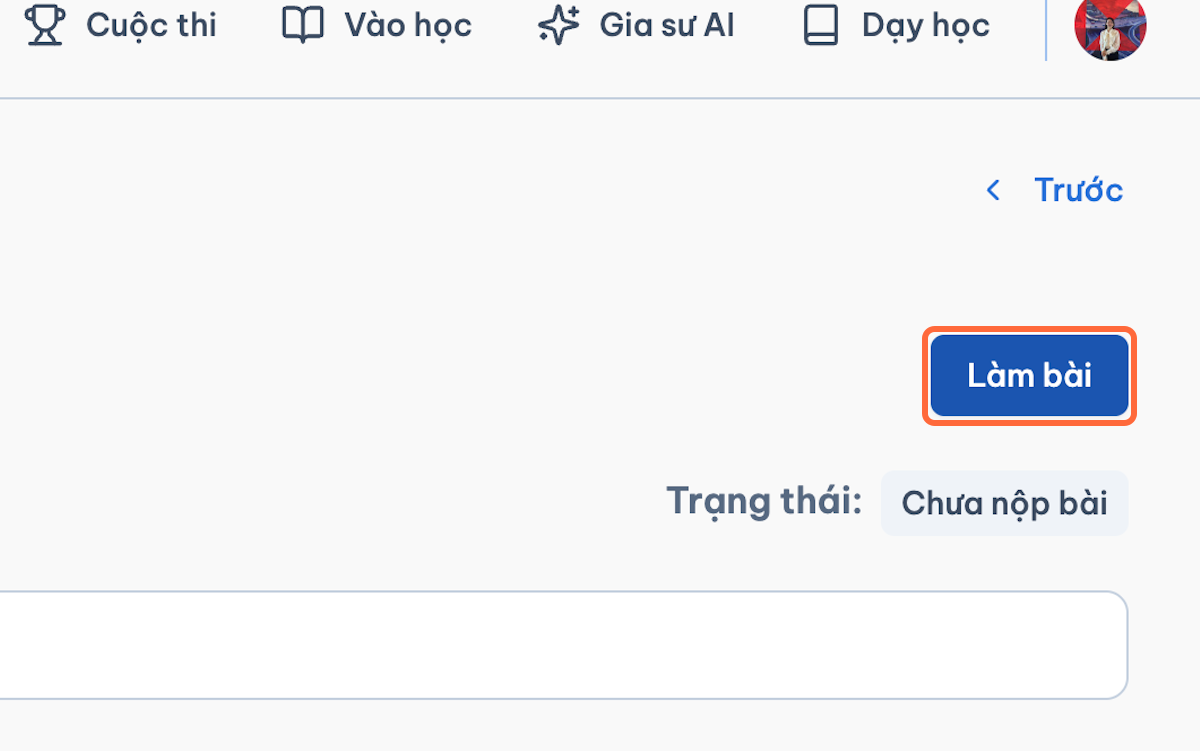
Open the essay or assignment lesson.
-
Read:
- Instructions
- Passing conditions
- Deadline
- Allowed attempts
- Required file type
-
Enter the response or upload the required file.
-
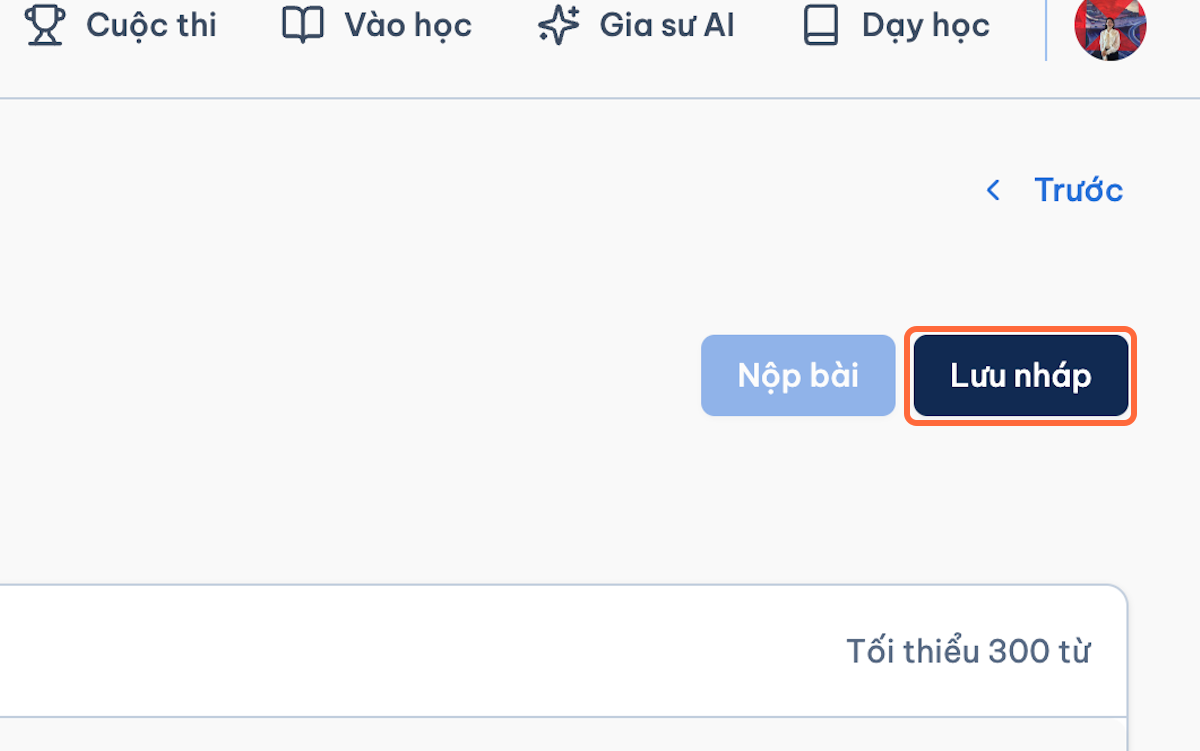
Select Save Draft when the work is not ready.
-
Return to the draft and continue editing.
-
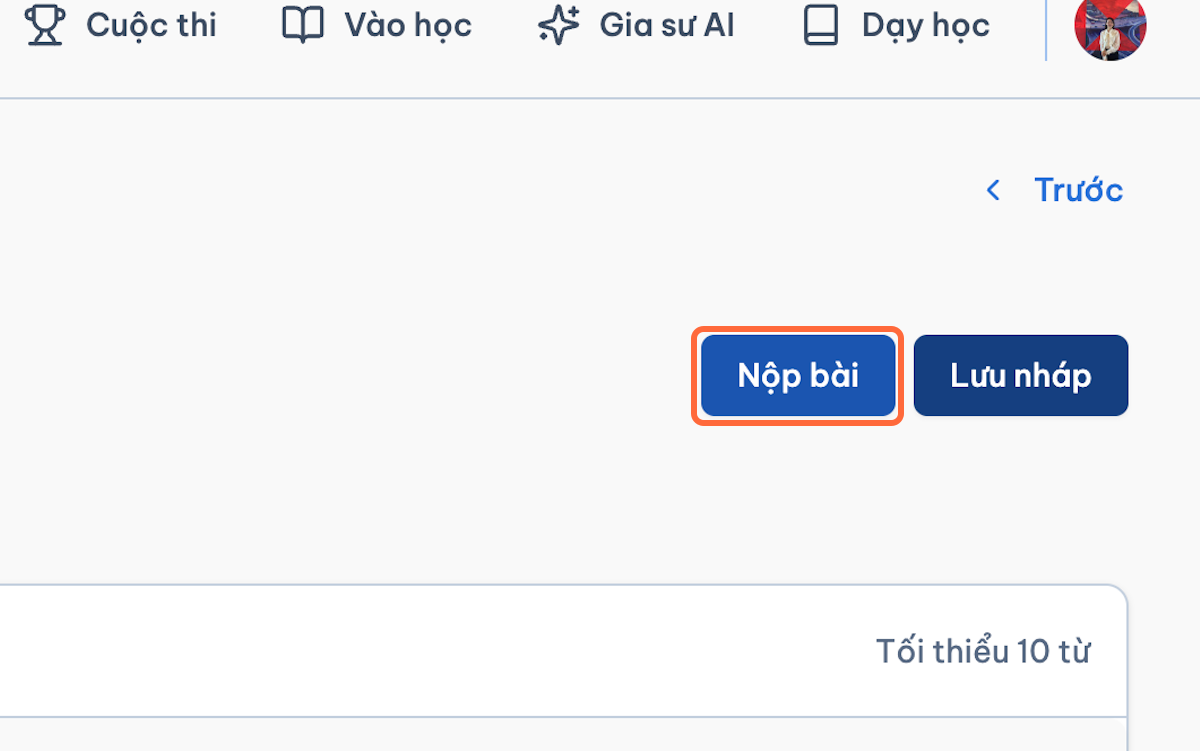
Select Submit when complete.
-
Confirm the submission.
-
Wait for instructor review.
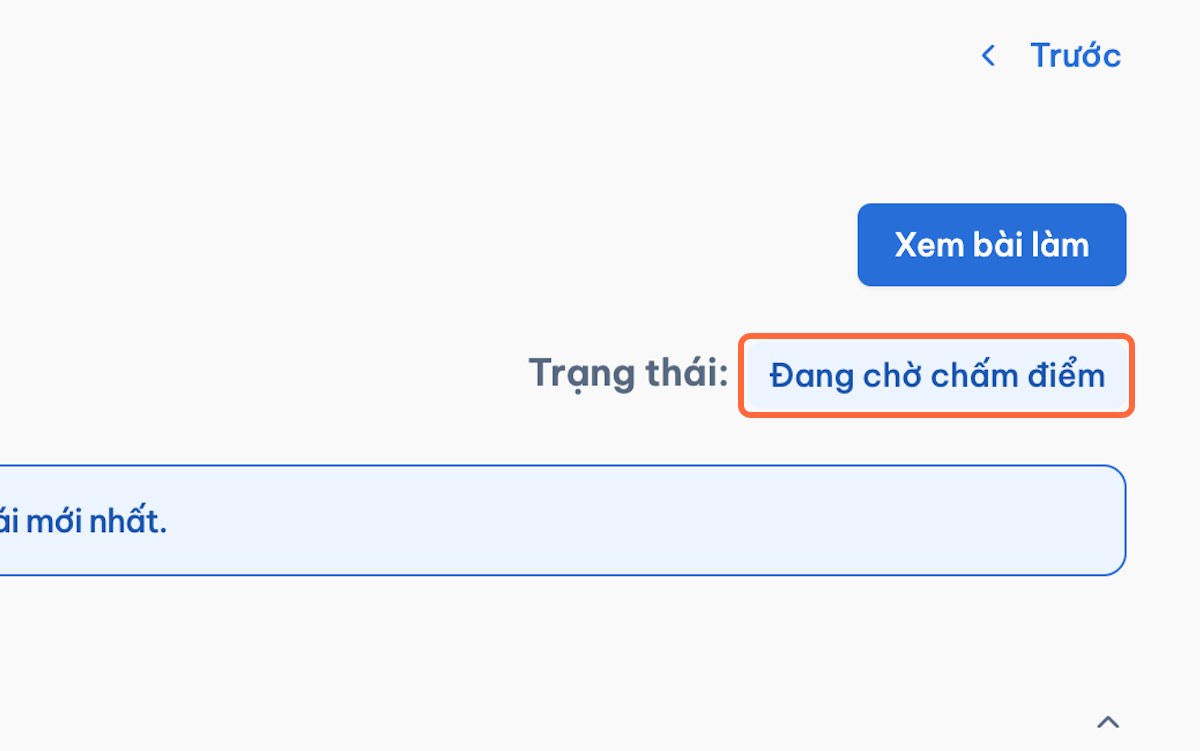
Instructor Result
- Passed or Approved: the lesson is completed.
- Revision Required: open the instructor feedback, update the work, and resubmit.
- Not Passed: review the score and feedback and retry when another attempt is permitted.
3.5.2) Complete an H5P Activity
- Open the interactive lesson.
- Read the instructions.
- Complete each interaction.
- Select Submit or Finish.
- Review the result.
- Retry when permitted.
- Confirm that the lesson status changes to completed.